WordPress Playground for Everyone
WordPress Playground lets you run WordPress instantly—no server, no setup, no risk. It works in your browser at playground.wordpress.net, and developers can also use it via CLI, Node.js, or embedded in their own apps. But you don't need to be technical to benefit from it.
Watch this quick overview:
Think of It Like a Car Simulator
A car simulator gives you a steering wheel, pedals, and virtual streets. Practice driving, hit cones, make mistakes — nothing bad happens. No real car gets damaged. Want to try again? Just restart.
WordPress Playground works the same way. It gives you a complete WordPress site to experiment with, but nothing you do affects any real website. Make changes, break things, learn from mistakes — then start fresh whenever you want.
What Can You Do with Playground?
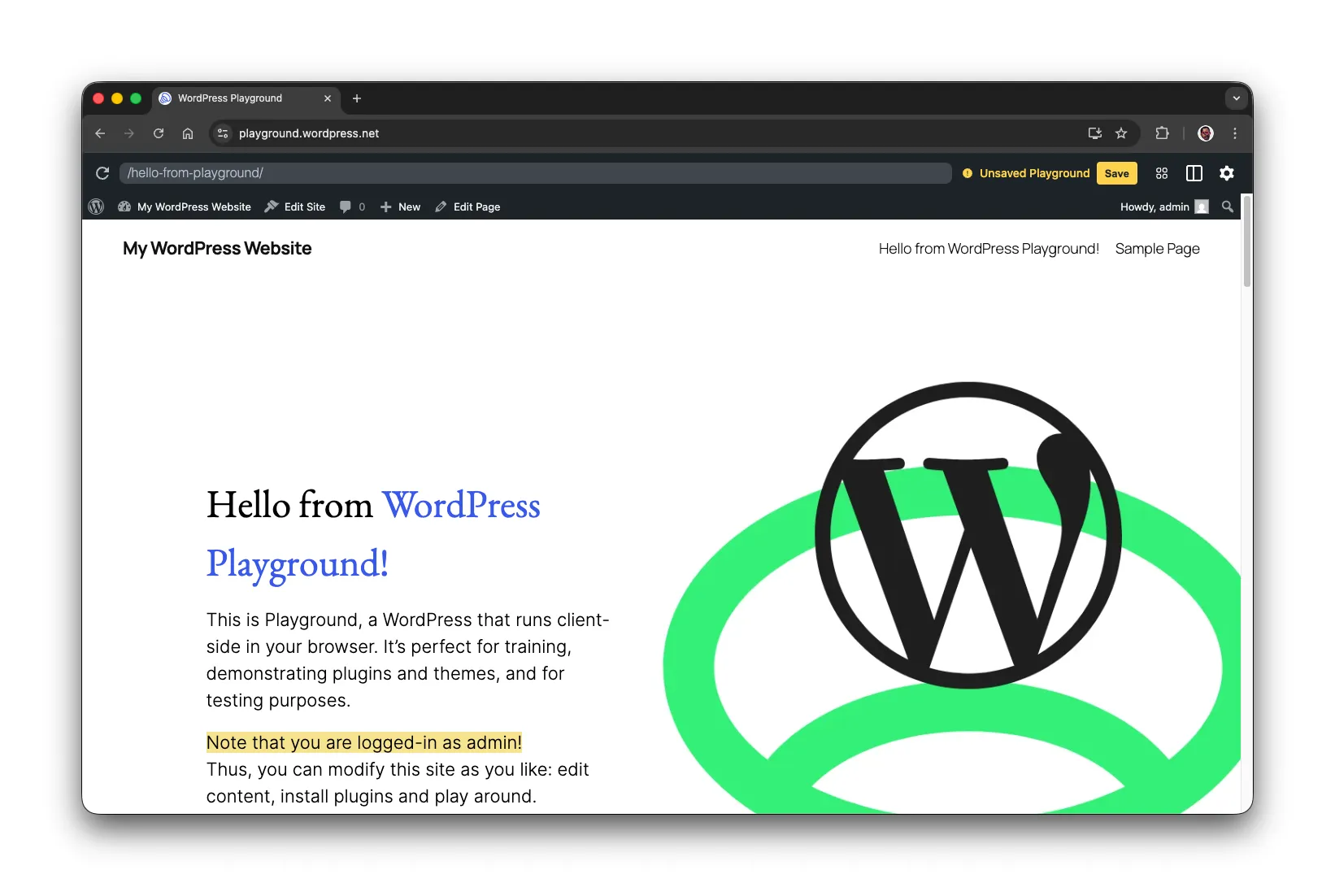
When you visit playground.wordpress.net, you get a WordPress site running entirely in your browser. You can:
- Install plugins and themes
- Edit pages and create content
- Change WordPress and PHP versions
- Explore features you've never tried before
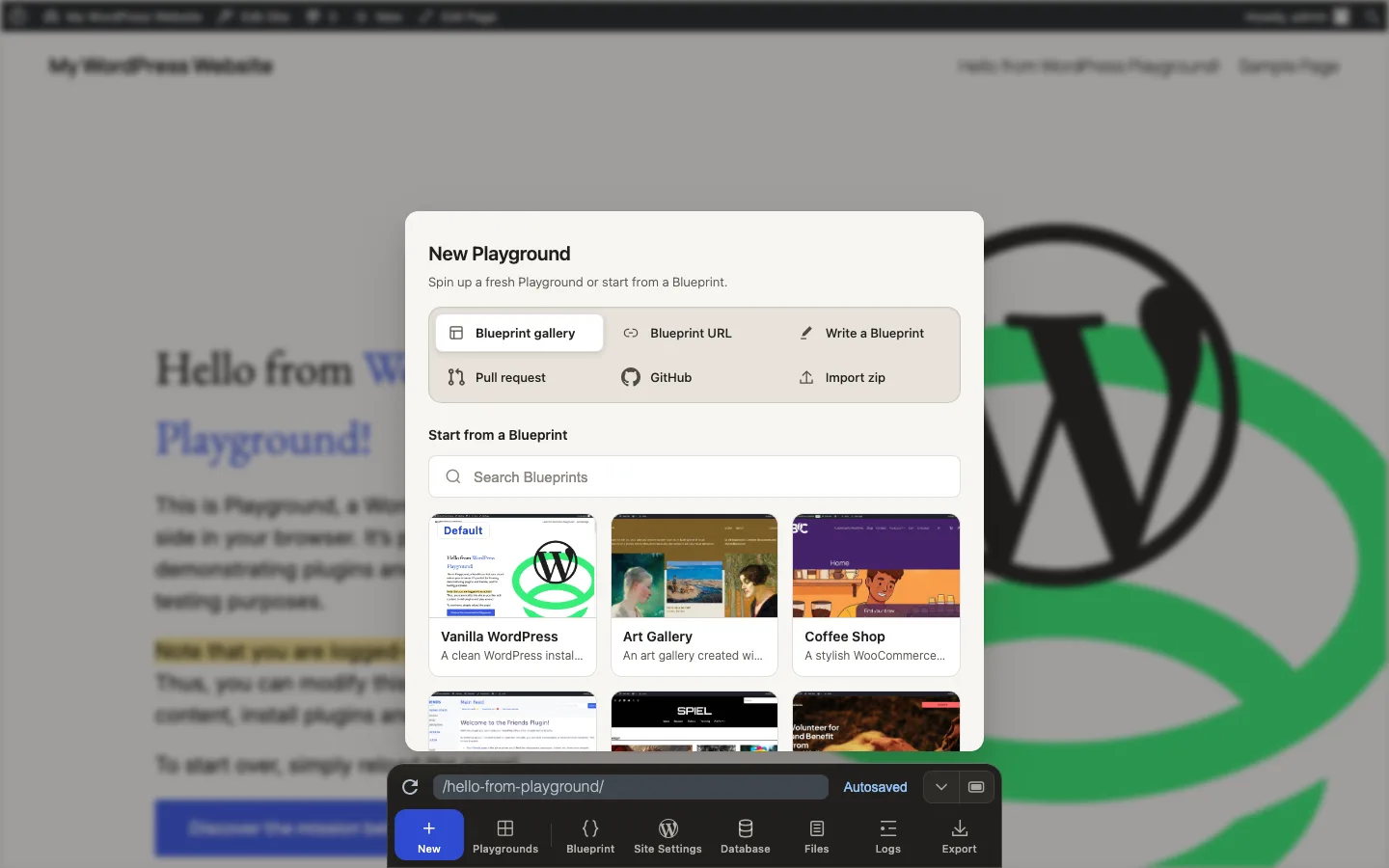
By default, WordPress Playground loads a landing page that introduces Playground. To start with a plain WordPress install, open New in the Dock and choose Vanilla WordPress from the Blueprint gallery.
If You're Learning WordPress
Are you new to WordPress or trying to understand features like the Site Editor or the new features of the latest WordPress Release? Playground is your perfect practice space.
Explore How Pages Are Built
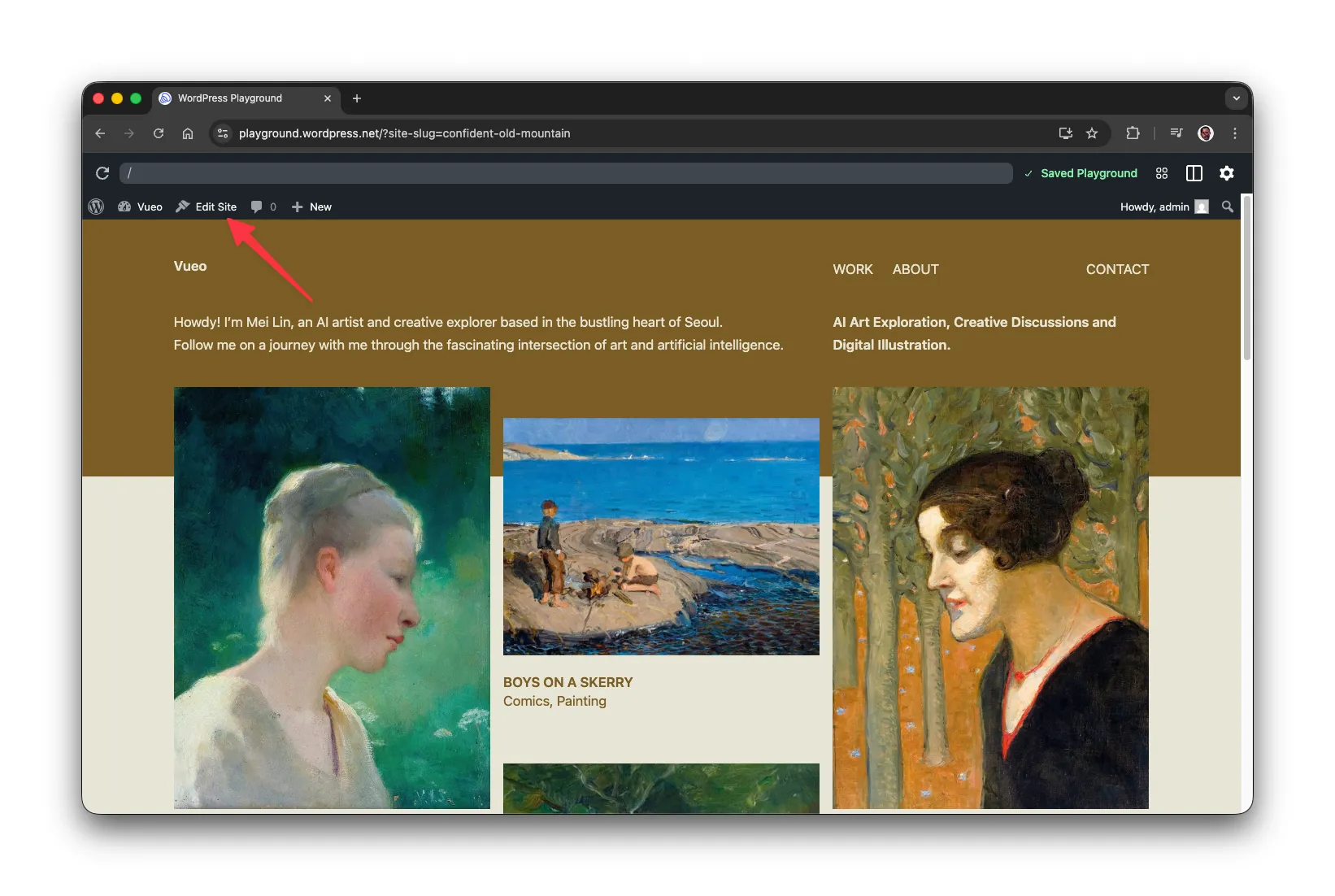
Playground logs you in as an administrator, so you can edit any page. Click Edit for editing posts and Edit Site to update the website layout in the top toolbar to open the editor.
Want to understand how a page layout was created? Open the List View (the three horizontal lines icon) to see every block that makes up the page.
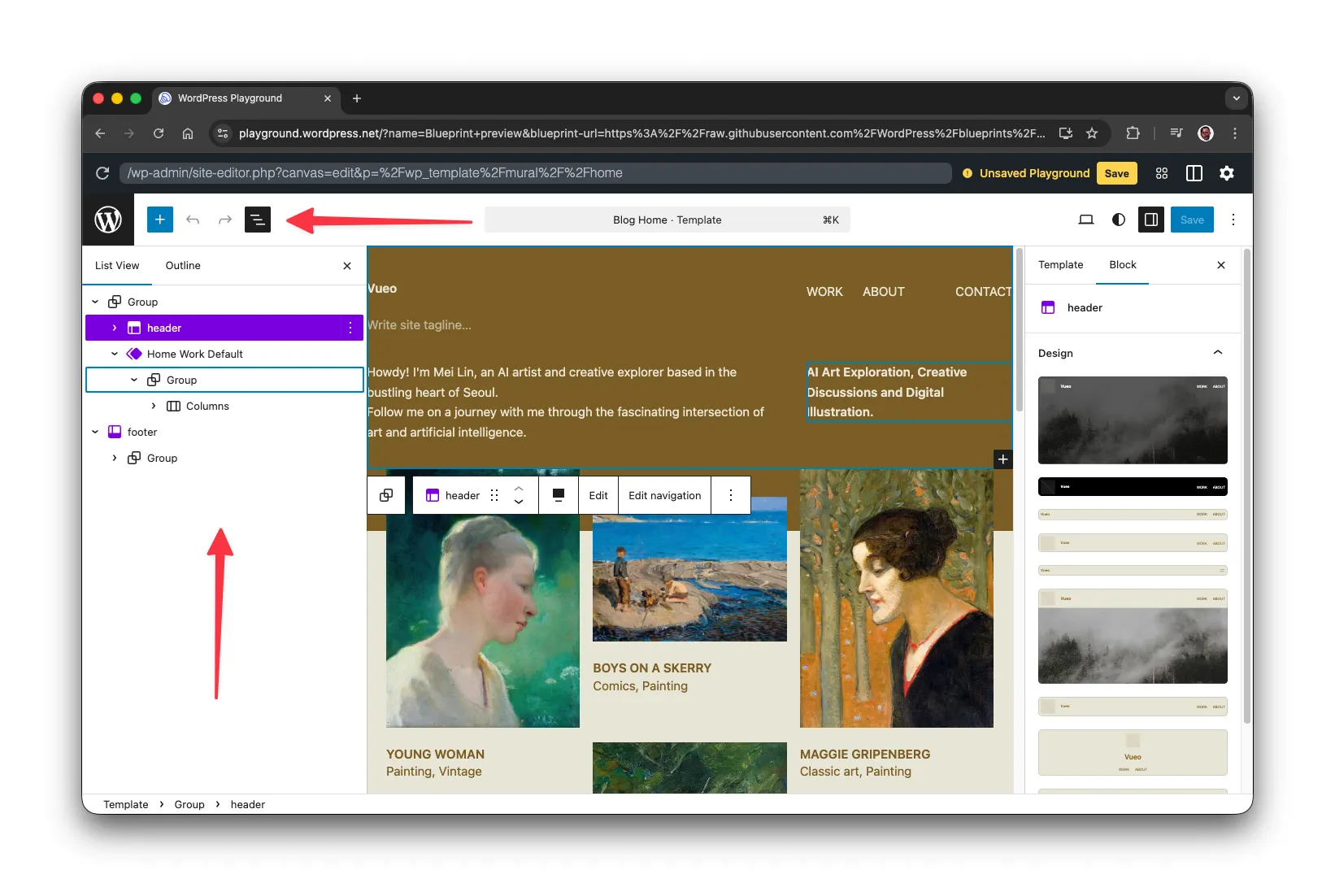
You can inspect columns, headings, images, and buttons — and see exactly how they're arranged. This is a powerful way to learn by example.
Explore the Blueprint Library
Open New in the Dock to browse the Blueprint gallery. The gallery has examples for art galleries, stores, portfolios, learning environments, and many other starting points.
Try New Features Safely
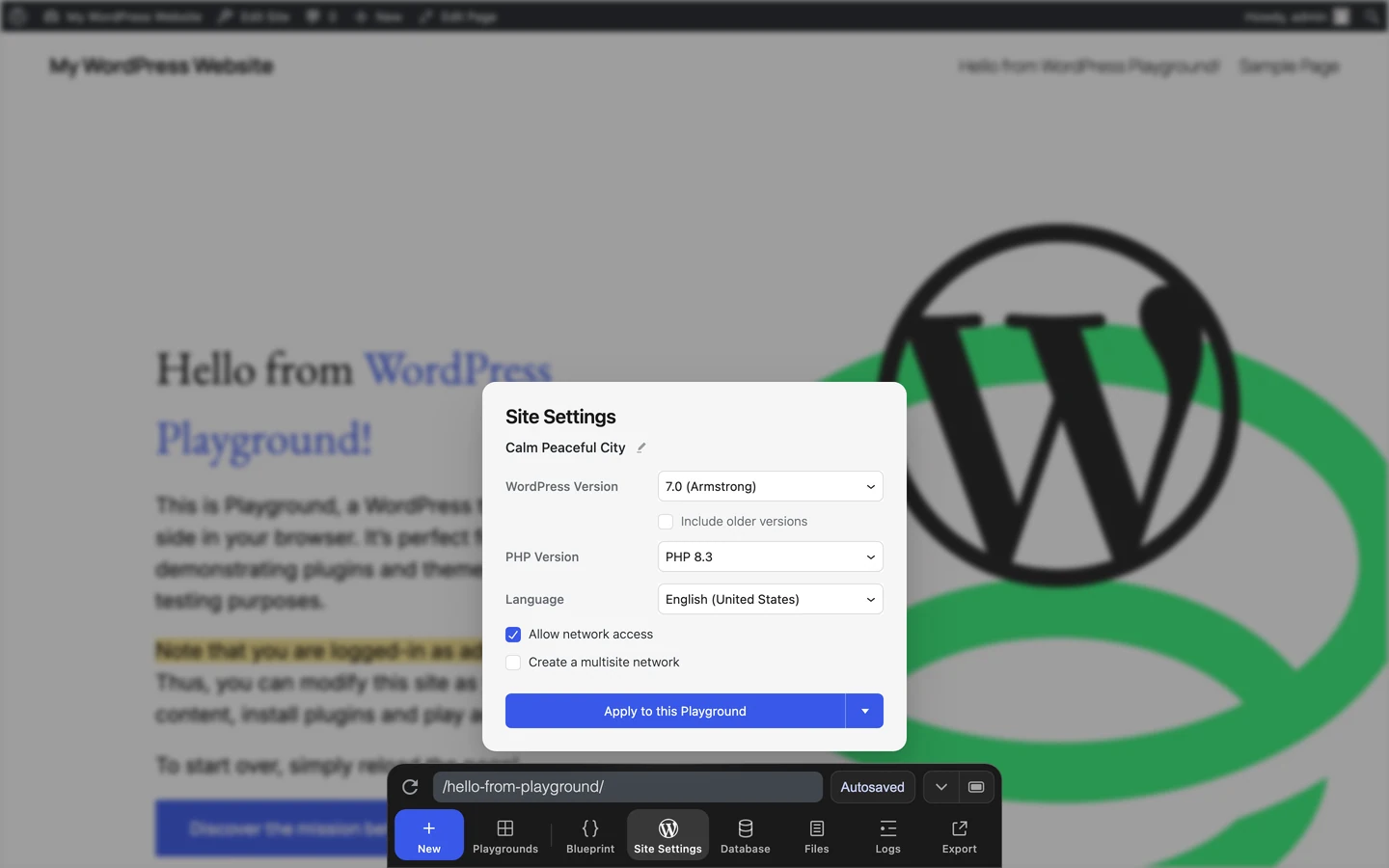
When the WordPress team releases new features, you can test them in Playground before they affect your real site. Open Site Settings from the Dock to choose a WordPress or PHP version.
If You Own a WordPress Site
Running a live website means every change risks breaking something. Playground lets you test before you commit.
Test Plugins Before Installing
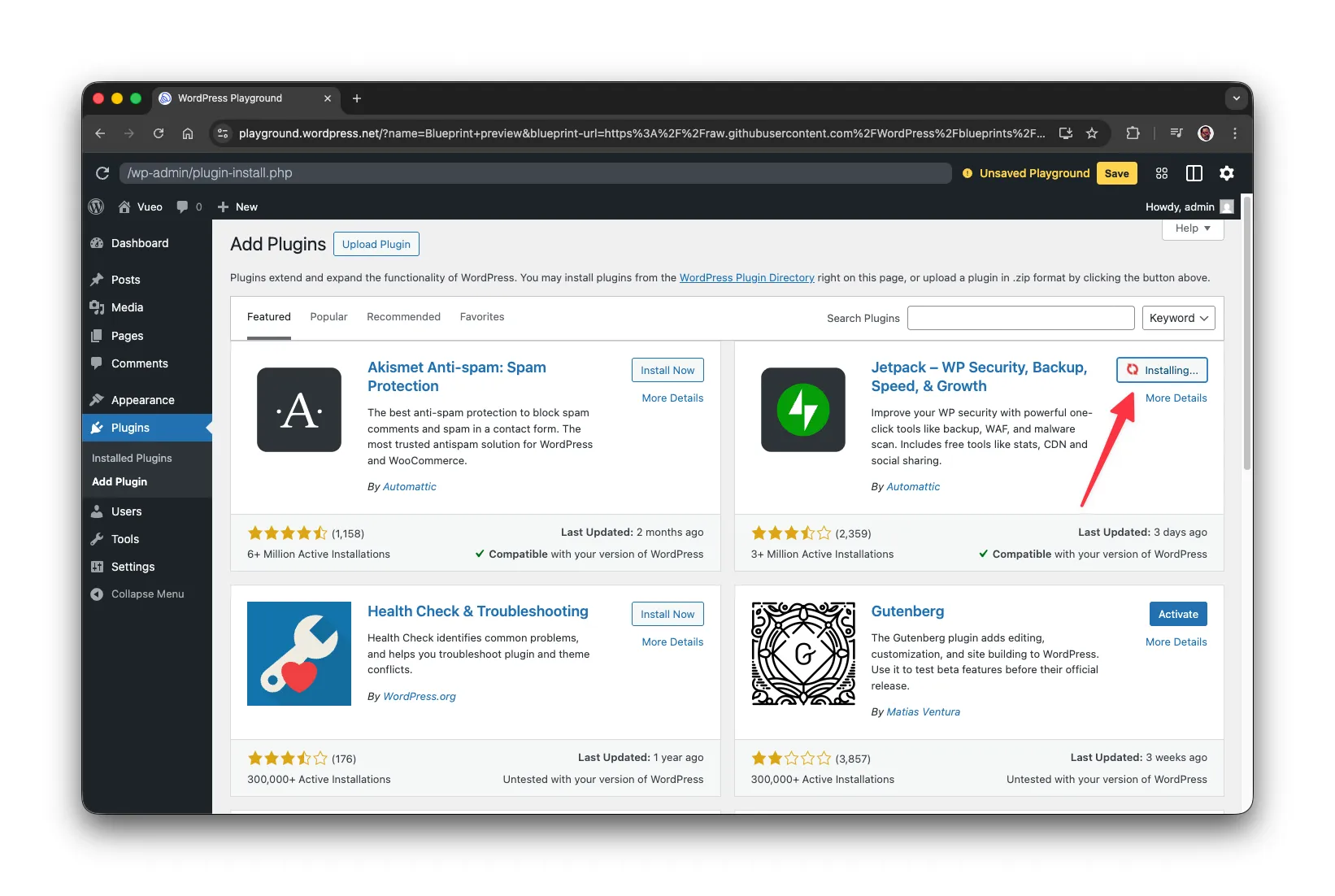
Curious about a new SEO plugin? Want to compare two contact form options? Install them in Playground first:
- Open playground.wordpress.net
- Go to Plugins → Add New
- Search for and install any plugin
- Test it thoroughly
Your real site stays untouched while you evaluate whether the plugin fits your needs.
Preview Theme Changes
Thinking about switching themes? Test your new theme in Playground to see how it handles your content — without disrupting your visitors.
Compare Options Side by Side
Open multiple browser tabs with different Playground setups. Compare plugin A versus plugin B, or see how your content looks in different themes. Make informed decisions before touching your production site.
Your Real Site Stays Safe
Every Playground runs independently in your browser. Nothing syncs to any external server, and nothing affects your live WordPress installation.
If You Use WordPress Daily
Even experienced WordPress users benefit from a safe testing environment.
Make Design Experiments
Want to try a different font size? Adjust spacing? Change colors? Load a Playground with the same theme that you are using in production and edit it freely:
- Open any page in the editor
- Select a block and modify its settings
- See the results immediately
If you like what you see, recreate those changes on your real site. If not, start another Playground. The experiment may remain as a recent autosave until newer autosaves replace it.
Yes, You Can Save Your Work
Playground doesn't have to be temporary. You can save your progress and return to it later.
Save to Your Browser
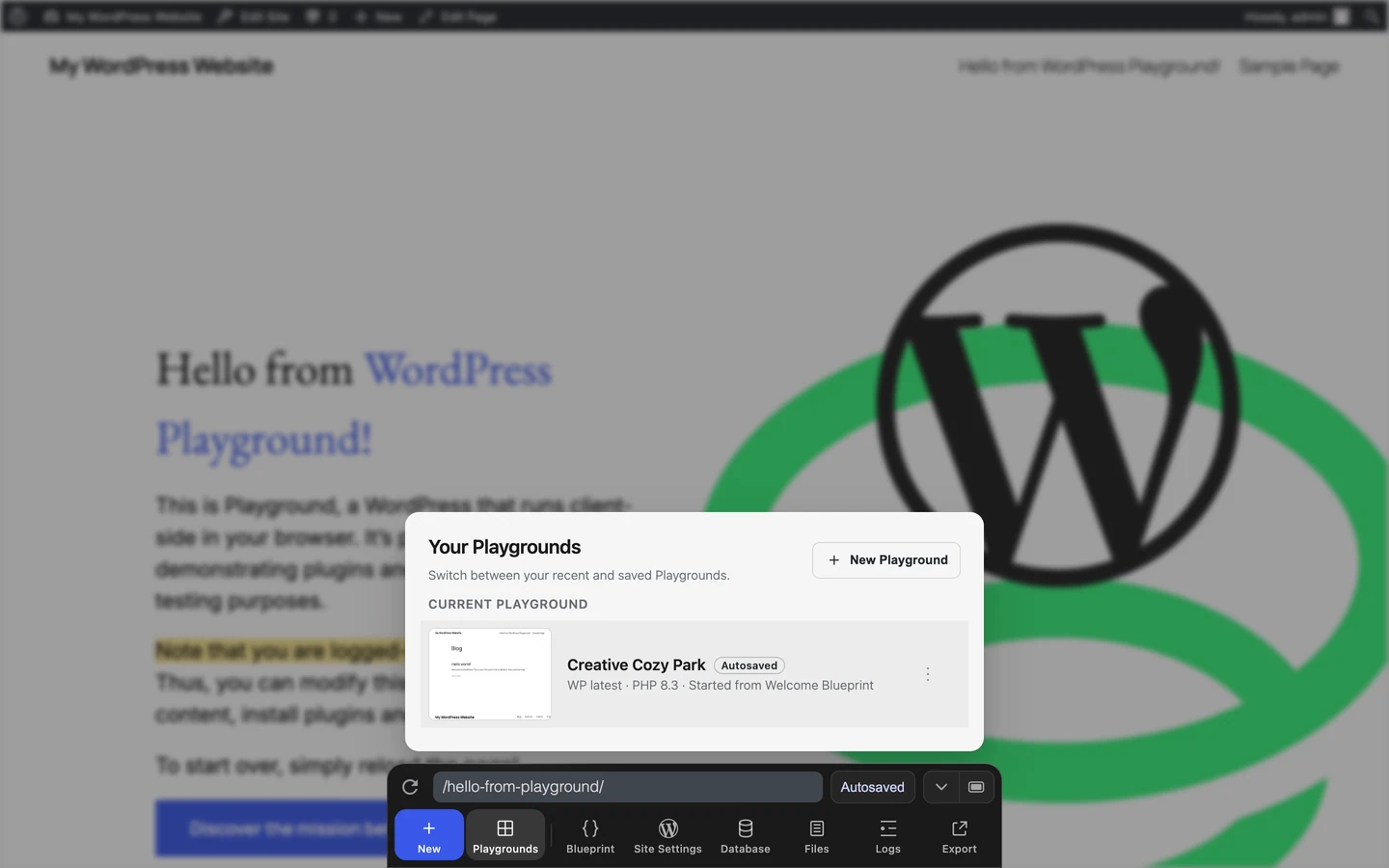
New Playgrounds are autosaved when browser storage is available. Open Your Playgrounds from the Dock to return to recent autosaves. Playground keeps up to five recent autosaves.
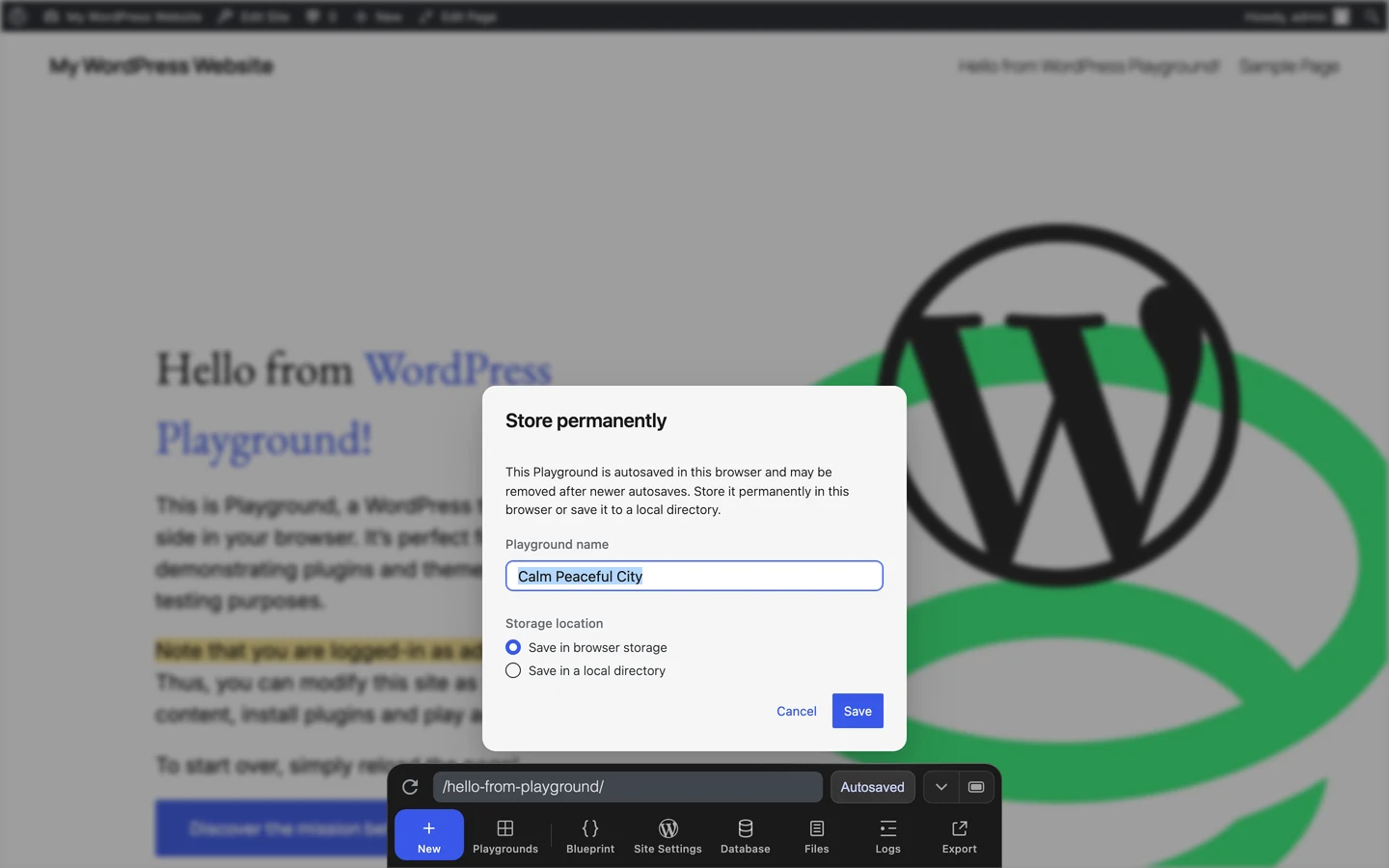
To keep an autosave permanently, click the Autosaved status in the Dock, choose Save in browser storage, and save it.
Download as a ZIP File
Need to move your work elsewhere? Open Export and choose Download as .zip. The ZIP contains the current files, database, plugins, themes, uploads, and edits. You can restore it later with New → Import zip or host it on a server that supports PHP and SQLite.
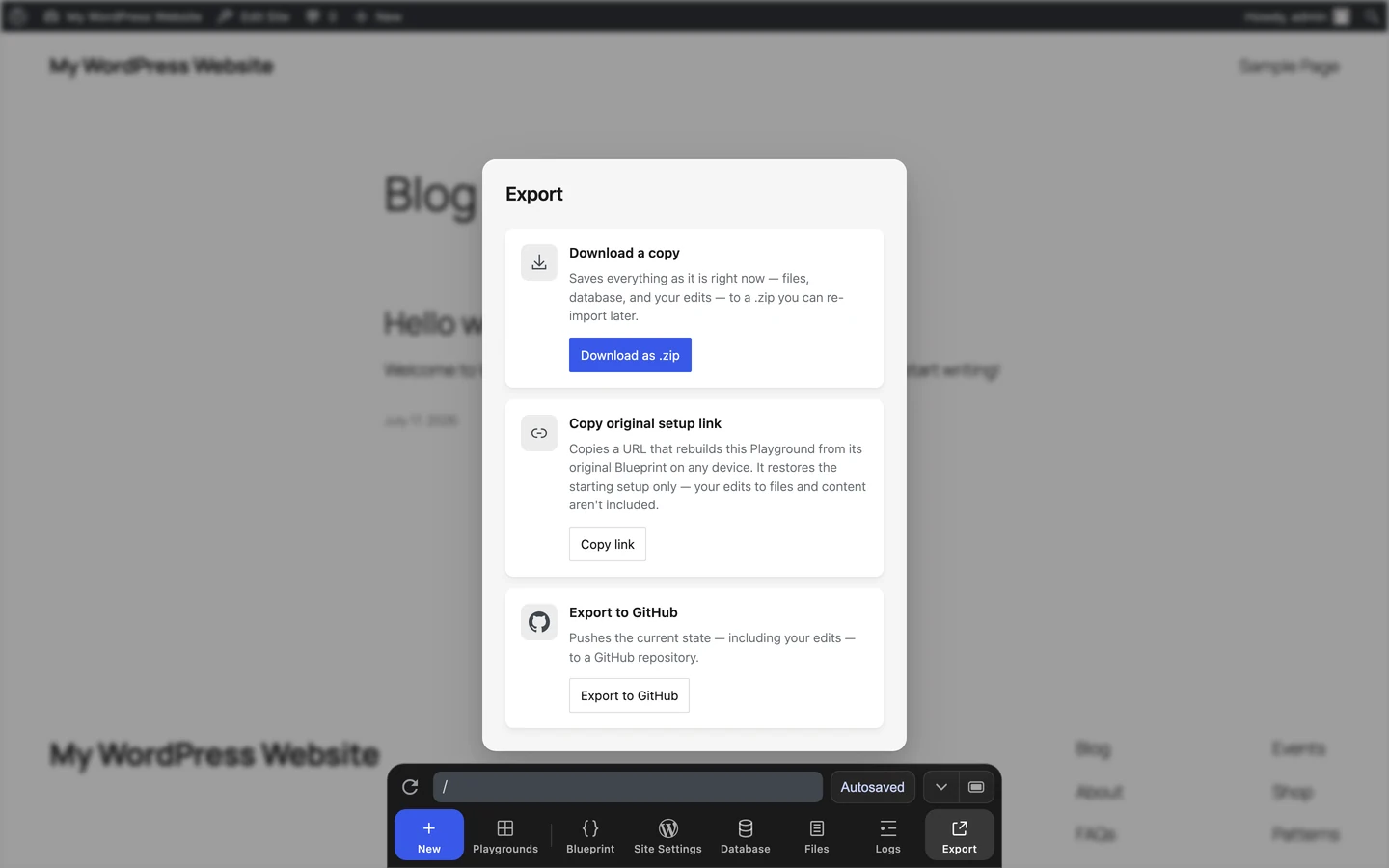
Keep a portable backup
Browser storage belongs to your browser profile and can be cleared or evicted. Export a ZIP when you need a file you can move or archive.
Next Steps
Now that you know Playground is for everyone, explore further:
- Quick Start Guide — A 5-minute walkthrough of Playground basics
- About WordPress Playground — Learn what you can build, test, and launch