Adding PR Preview Buttons with GitHub Actions
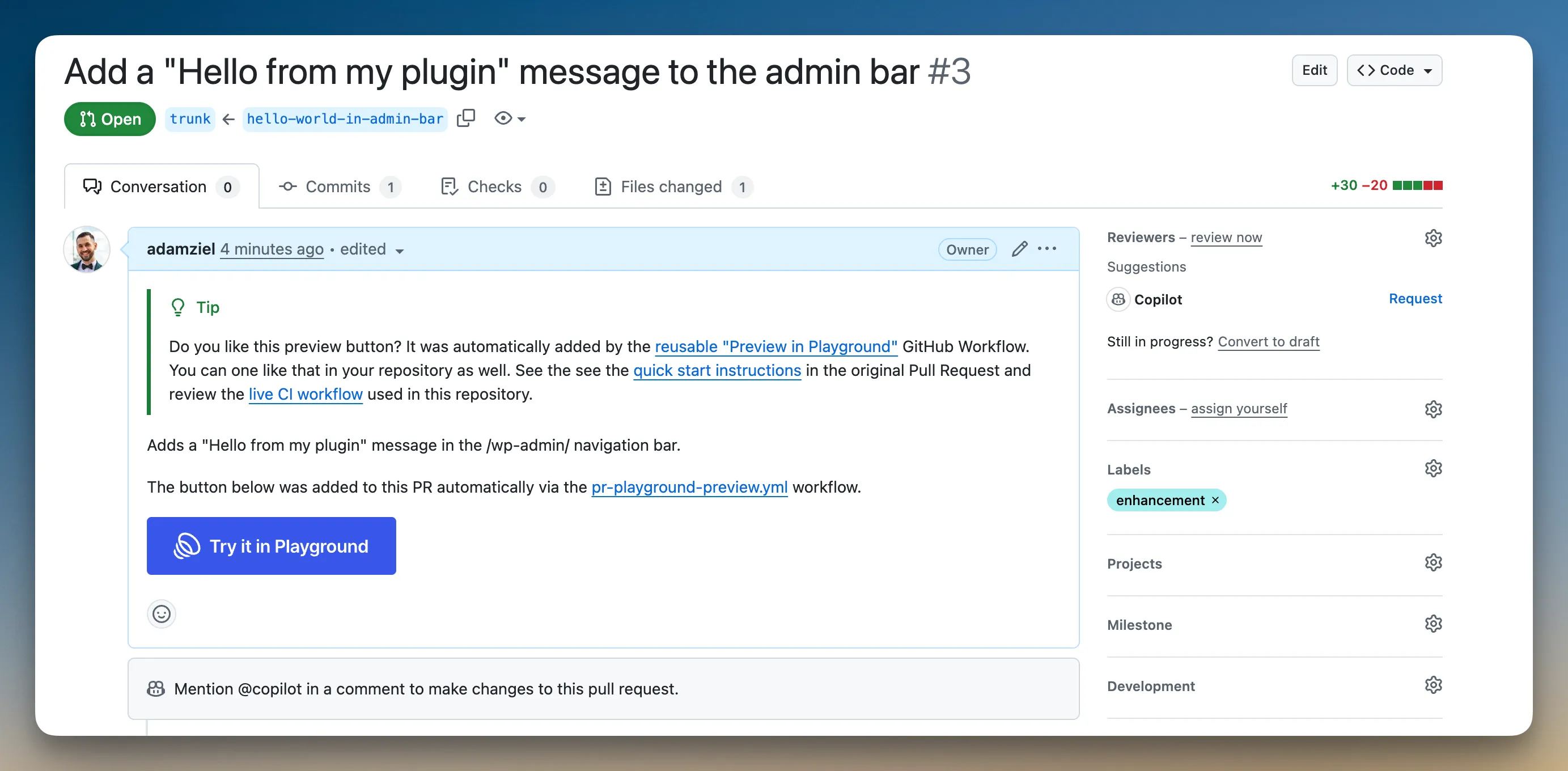
The Playground PR Preview action adds a preview button to your pull requests. Clicking the button launches Playground with your plugin or theme installed from the PR branch:
Start with the setup that matches your repository:
| Your repository | Use this setup |
|---|---|
| Plugin or theme works directly from the repository checkout | No build step |
| Plugin or theme needs Composer, npm, Vite, or another build command first | With a build step |
| Public fork PRs need working previews | With a build step |
| Private repository | The default setup is not enough; Playground needs public, unauthenticated URLs. |
If you are not sure, use the no-build setup only when the files committed to the pull request are exactly the files WordPress should run. If CI must generate anything first, use the build-step setup.
For complete configuration options, recipes, and reference tables, see the action-wp-playground-pr-preview documentation.
How it works
Playground runs WordPress in the browser. Anything Playground installs, such as a plugin ZIP, theme ZIP, or WXR file, must be available at a public URL when someone clicks the preview button.
The action uses two URL strategies:
git:directory: Playground fetches the repository at the pull request ref. Use this for the no-build setup.- Release assets: CI builds ZIP files and uploads them to a public
ci-artifactsprerelease. Use this when the preview needs Composer dependencies, npm output, compiled assets, or any other generated files.
Use the action and reusable workflows in different places
The direct action, WordPress/action-wp-playground-pr-preview@v3, is a regular GitHub Action. Reference it as a step under jobs.<job_id>.steps[].uses.
The build-step setup uses reusable workflows, preview-build.yml@v3 and preview-publish.yml@v3. Reference those at the job level under jobs.<job_id>.uses.
No build step
Use this setup when your plugin or theme can run directly from the repository checkout, with no Composer install, npm build, or asset pipeline.
Create .github/workflows/pr-preview.yml:
name: PR Preview
on:
    pull_request:
        types: [opened, synchronize, reopened, edited]

jobs:
    preview:
        runs-on: ubuntu-latest
        permissions:
            contents: read
            pull-requests: write
        steps:
            - uses: WordPress/action-wp-playground-pr-preview@v3
              with:
                  plugin-path: .
                  github-token: ${{ secrets.GITHUB_TOKEN }}
Use theme-path: . instead of plugin-path: . for a theme:
with:
    theme-path: .
    github-token: ${{ secrets.GITHUB_TOKEN }}
Use a subdirectory when the plugin or theme is not at the repository root:
with:
    plugin-path: plugins/my-plugin
    github-token: ${{ secrets.GITHUB_TOKEN }}
You do not need to create secrets.GITHUB_TOKEN; GitHub provides it automatically. The permissions block gives that token the access this action needs.
Open a pull request. The action updates the PR description with a managed Preview button block. Clicking the button opens Playground with your plugin or theme installed and activated from the pull request ref.
Fork PR note
This one-workflow setup is simplest for same-repository PRs. Public fork PRs usually receive a read-only GITHUB_TOKEN, so the action may be unable to edit the PR description. If fork contributors need working previews, use the build-step setup even when the build command only creates a ZIP.
Do not switch this workflow to pull_request_target to run PR code with write permissions.
With a build step
Use this setup when the preview needs generated files, such as Composer dependencies, npm or Vite bundles, or another build output. It also gives public fork PRs a safe path to working previews.
Create two workflow files:
- A build workflow that runs on
pull_requestwith read-only permissions, runs your build command, and uploads ZIP files as a GitHub Actions artifact. - A publish workflow that runs on
workflow_runafter the build succeeds, uploads those ZIP files to a public release URL, builds a Blueprint, and posts the preview button.
Build workflow
Create .github/workflows/pr-preview-build.yml:
name: PR Preview - Build
on:
    pull_request:
        types: [opened, synchronize, reopened, edited]

jobs:
    build:
        uses: WordPress/action-wp-playground-pr-preview/.github/workflows/preview-build.yml@v3
        with:
            artifacts: my-plugin=build/my-plugin.zip
            node-version: '20'
            build-command: |
                npm ci
                npm run build:plugin-zip
In artifacts: my-plugin=build/my-plugin.zip, my-plugin is the artifact name and build/my-plugin.zip is the ZIP file your build-command must create. The ZIP should extract to a plugin or theme slug folder, such as my-plugin/my-plugin.php, not directly to files at the ZIP root.
Publish workflow
Create .github/workflows/pr-preview-publish.yml:
name: PR Preview - Publish
on:
    workflow_run:
        workflows: ['PR Preview - Build']
        types: [completed]

permissions:
    contents: write
    pull-requests: write

jobs:
    publish:
        permissions:
            contents: write
            pull-requests: write
        uses: WordPress/action-wp-playground-pr-preview/.github/workflows/preview-publish.yml@v3
        with:
            kind: plugin
Use kind: theme for one theme ZIP. For multiple ZIPs or extra setup steps, use a custom blueprint: as shown in Built artifacts with a custom blueprint.
Open a pull request. The build workflow runs your build command. After it succeeds, the publish workflow creates or updates the ci-artifacts prerelease, uploads the built ZIP, and adds a Preview button to the PR description.
Why two workflow files?
GitHub does not allow one workflow to safely run untrusted code from a fork PR and write to releases or PR descriptions. The build workflow runs PR code with read-only permissions. The publish workflow runs later from the default branch with write permissions and never checks out or runs PR code.
Custom blueprints
Use Blueprints to configure the Playground environment. You can install companion plugins, set WordPress options, import content, pin PHP and WordPress versions, open a specific page, or log in as an admin user.
For a no-build preview, provide a full Blueprint with the direct action:
- uses: WordPress/action-wp-playground-pr-preview@v3
  with:
      blueprint: |
          {
            "$schema": "https://playground.wordpress.net/blueprint-schema.json",
            "preferredVersions": { "php": "8.3", "wp": "6.6" },
            "steps": [
              {
                "step": "installPlugin",
                "pluginData": {
                  "resource": "git:directory",
                  "url": "https://github.com/${{ github.repository }}.git",
                  "ref": "${{ github.event.pull_request.head.ref }}",
                  "path": "/"
                },
                "options": { "activate": true }
              },
              {
                "step": "installPlugin",
                "pluginData": {
                  "resource": "wordpress.org/plugins",
                  "slug": "woocommerce"
                },
                "options": { "activate": true }
              },
              { "step": "login", "username": "admin" }
            ]
          }
      github-token: ${{ secrets.GITHUB_TOKEN }}
Or reference a hosted Blueprint:
- uses: WordPress/action-wp-playground-pr-preview@v3
  with:
      blueprint-url: https://example.com/path/to/blueprint.json
      github-token: ${{ secrets.GITHUB_TOKEN }}
Choose the Blueprint input based on where the JSON comes from:
- Use
blueprintwhen the direct action or publish workflow can include the full JSON string. - Use
blueprint-urlwith the direct action when the JSON is already hosted at a public URL. - Use
blueprint-from-buildinpreview-build.ymltogether withblueprint-from-artifact: trueinpreview-publish.ymlwhen the build workflow generatesblueprint.jsondynamically.
See Blueprints documentation for all available steps and configuration options.
Built artifacts with a custom blueprint
Use a custom Blueprint in the publish workflow when a built preview needs more than the default “install and activate” behavior. Common reasons include installing multiple ZIP files, opening a specific admin page, installing PHP extension bundles, or logging in automatically.
Put artifacts and build-command under jobs.build.with in .github/workflows/pr-preview-build.yml:
jobs:
    build:
        uses: WordPress/action-wp-playground-pr-preview/.github/workflows/preview-build.yml@v3
        with:
            artifacts: my-plugin=build/my-plugin.zip
            php-version: '8.2'
            build-command: |
                set -euo pipefail
                composer install --no-dev --optimize-autoloader --no-interaction
                mkdir -p build/my-plugin
                rsync -a --delete \
                    --exclude='.git' \
                    --exclude='.github' \
                    --exclude='build' \
                    ./ build/my-plugin/
                ( cd build && zip -qr my-plugin.zip my-plugin )
Then put blueprint under jobs.publish.with in .github/workflows/pr-preview-publish.yml:
jobs:
    publish:
        permissions:
            contents: write
            pull-requests: write
        uses: WordPress/action-wp-playground-pr-preview/.github/workflows/preview-publish.yml@v3
        with:
            blueprint: |
                {
                  "$schema": "https://playground.wordpress.net/blueprint-schema.json",
                  "landingPage": "/wp-admin/admin.php?page=my-plugin",
                  "steps": [
                    { "step": "login", "username": "admin", "password": "password" },
                    {
                      "step": "installPlugin",
                      "pluginZipFile": {
                        "resource": "url",
                        "url": "{{ARTIFACT_URL:my-plugin}}"
                      },
                      "options": { "activate": true }
                    }
                  ]
                }
{{ARTIFACT_URL:my-plugin}} is replaced with the public URL of the matching ZIP. The name must match the left side of the corresponding artifacts entry.
For a monorepo with multiple plugins or themes, add one artifacts entry per ZIP and reference each one with {{ARTIFACT_URL:<name>}} in the Blueprint.
Button placement and templates
By default, the action updates the PR description (mode: append-to-description). To post as a comment instead:
with:
    plugin-path: .
    mode: comment
    github-token: ${{ secrets.GITHUB_TOKEN }}
In the build-step setup, pass mode: comment to preview-publish.yml instead.
Customize the PR description with description-template:
with:
    plugin-path: .
    description-template: |
        ### Test this PR in WordPress Playground

        {{PLAYGROUND_BUTTON}}

        **Branch:** {{PR_HEAD_REF}} · **Plugin:** `{{PLUGIN_SLUG}}`
    github-token: ${{ secrets.GITHUB_TOKEN }}
Available variables include {{PLAYGROUND_BUTTON}}, {{PLAYGROUND_URL}}, {{PR_NUMBER}}, {{PR_TITLE}}, {{PR_HEAD_REF}}, {{PLUGIN_SLUG}}, and {{THEME_SLUG}}.
The action restores the button if it is removed from the PR description. To prevent restoration:
with:
    plugin-path: .
    restore-button-if-removed: false
    github-token: ${{ secrets.GITHUB_TOKEN }}
Checklist for using a coding agent
If you ask an LLM or coding agent to add PR previews to a repository, tell it to inspect the repository before choosing a setup.
Suggested prompt:
Add WordPress/action-wp-playground-pr-preview@v3 to this repository.
First inspect whether the WordPress plugin or theme can run directly from the repository checkout, or whether CI must build files first.
If no build step is needed, add one pull_request workflow using plugin-path or theme-path.
If a build step is needed, add the two-workflow preview-build.yml / preview-publish.yml setup.
Use the smallest working configuration. Preserve existing CI. Do not use pull_request_target.
After editing, verify that any artifacts path listed in artifacts: is actually created by build-command.
When reviewing the result, check that:
secrets.GITHUB_TOKENis referenced but not created manually.- Direct action usage appears under
jobs.<job_id>.steps[].uses. - Reusable workflow usage appears under
jobs.<job_id>.uses. - Build and publish workflows use the same version, for example
@v3. - Every
artifactsentry has the formname=path/to/file.zip, and the build command creates that exact ZIP path. - Plugin and theme ZIPs extract to slug-named folders, not directly to files at the ZIP root.
- The workflow does not use
pull_request_target.
Troubleshooting
Invalid workflow file or jobs.<id>.uses error: Check whether you are using the direct action or a reusable workflow. WordPress/action-wp-playground-pr-preview@v3 belongs under jobs.<job_id>.steps[].uses. WordPress/action-wp-playground-pr-preview/.github/workflows/preview-build.yml@v3 and preview-publish.yml@v3 belong under jobs.<job_id>.uses.
The publish workflow run is startup_failure with no logs: The reusable publish workflow needs contents: write and pull-requests: write. Grant those permissions to the publish job, either with a top-level permissions: block that the job inherits or with jobs.publish.permissions:. The example above includes both so later workflow edits cannot accidentally narrow the publish job permissions.
Button not appearing: The workflow file must exist on the default branch before it runs on PRs. Check the Actions tab for errors and confirm the calling workflow grants pull-requests: write.
Resource not accessible by integration: The workflow calling the action cannot write to the pull request. For same-repository PRs, add permissions: pull-requests: write. For public fork PRs, use the two-workflow build-step setup.
Button appears but preview fails to load or 404s: For built-artifact workflows, check that the build uploaded the expected ZIP and that the ci-artifacts release is a prerelease, not a draft. New v3 setups create a prerelease automatically, but older draft releases may need to be converted once.
Plugin needs Composer or npm build output and shows up empty: The workflow is probably using plugin-path: directly. That path uses git:directory, so Playground receives the repository files without running a build step. Switch to the build-step setup.
Plugin or theme is missing after install: Check the ZIP shape. Plugin and theme ZIPs should extract to a slug-named folder, such as my-plugin/my-plugin.php, not directly to files at the ZIP root.
git diff origin/$GITHUB_BASE_REF...HEAD fails with “no merge base”: The default checkout is shallow. Set fetch-depth: 0 on the build reusable workflow input.
plugin-path or theme-path resolves to an empty directory: The path is relative to the repository root, not to the workflow file. Use . for repo-root plugins or themes, or a path like plugins/my-plugin for subdirectories.
Preview fails with PHP.run() exit code 255 and no stderr: This is usually a fatal error during plugin activation, often from missing Composer dependencies. Switch to the build-step setup or check what your build-command produces. The build workflow logs unzip -l for the final artifact.
More: action-wp-playground-pr-preview documentation
Other ways of previewing a git repository
Examples
- action-wp-playground-pr-preview examples - Live repositories using the v3 workflows
- WordPress/blueprints - Blueprint previews