Troubleshoot and debug Blueprints
Blueprint errors usually point to one of three places:
- The Blueprint JSON is invalid.
- Playground could not fetch the Blueprint or one of its resources.
- A Blueprint step ran, but WordPress, PHP, WP-CLI, or a plugin failed.
Start with the exact error name shown by Playground, then use the matching section below.
Quick checklist
- Paste the Blueprint into the Blueprints editor to validate the JSON schema.
- If the Blueprint is loaded from a URL, open that URL directly in a private browser window and confirm it downloads valid JSON or a Blueprint ZIP bundle.
- If a step fails, note the step number in
BlueprintStepExecutionError. The failed step is usually the item at that position after Blueprint shorthands have been expanded. - Open browser developer tools and check the Console and Network tabs for download, CORS, PHP, or plugin activation details.
- For plugin/theme activation failures, check the Playground Logs panel or the browser console for PHP warnings and fatal errors.
InvalidBlueprintError
InvalidBlueprintError means the Blueprint does not match the
Blueprint data format. The error output usually
contains paths such as /steps/2/pluginData or /preferredVersions.
Unexpected property activate
activate belongs inside options, not directly on the step or inside
pluginData.
{
	"step": "installPlugin",
	"pluginData": {
		"resource": "wordpress.org/plugins",
		"slug": "woocommerce"
	},
	"options": {
		"activate": true
	}
}
Unexpected property plugins in preferredVersions
preferredVersions only accepts php and wp. Install plugins with the
top-level plugins shorthand or with an explicit installPlugin step.
{
	"preferredVersions": {
		"php": "8.3",
		"wp": "latest"
	},
	"plugins": ["sqlite-database-integration"]
}
Missing slug, url, path, or files
The resource object is incomplete or uses the wrong shape. Common fixes:
- WordPress.org plugin:
{ "resource": "wordpress.org/plugins", "slug": "akismet" } - ZIP URL:
{ "resource": "url", "url": "https://example.com/plugin.zip" } - Git directory:
{ "resource": "git:directory", "url": "https://github.com/org/repo", "ref": "trunk", "refType": "branch" }
See Resources References for all supported resource shapes.
Mixed plugin install properties
Use pluginData for installPlugin. Do not provide both pluginData and
older examples or custom objects such as pluginZipFile.
The WordPress.org plugin resource also needs a separate slug:
{
	"step": "installPlugin",
	"pluginData": {
		"resource": "wordpress.org/plugins",
		"slug": "woocommerce"
	}
}
Do not write "resource": "wordpress.org/plugins/woocommerce".
BlueprintFetchError
BlueprintFetchError means Playground could not load the file passed to
?blueprint-url=.
Check that the URL:
- Is public and does not require cookies, login, a temporary session, or a VPN.
- Returns HTTP 200 when opened directly.
- Serves valid JSON or a ZIP bundle with
blueprint.jsoninside it. - Sends
Access-Control-Allow-Origin: *or another header that allowshttps://playground.wordpress.net. - Uses a raw file URL, not a repository HTML page.
For GitHub, use raw.githubusercontent.com URLs instead of github.com/.../blob/....
For GitLab, use the raw file URL instead of a /-/blob/ page.
# Good
https://raw.githubusercontent.com/WordPress/blueprints/trunk/blueprints/welcome/blueprint.json

# Not a raw JSON response
https://github.com/WordPress/blueprints/blob/trunk/blueprints/welcome/blueprint.json
Temporary tunnel URLs, local development URLs, and draft release assets often fail because the browser cannot reach them or because they do not allow cross-origin requests. Move the Blueprint to a public host with CORS enabled.
Blueprint file is neither a valid JSON nor a ZIP file
This means Playground received a response, but the response was not a Blueprint. The URL may have returned an HTML page, 404 page, repository file viewer, proxy warning, login page, or corrupted ZIP.
Open the URL directly and check that:
- JSON URLs return valid Blueprint JSON.
- ZIP bundle URLs download a real ZIP archive.
- Blueprint bundles contain
blueprint.jsonat the root of the ZIP. - The response is not a small HTML or text error page.
URIError: URI malformed
URIError: URI malformed usually points to a broken encoded Blueprint fragment
in the URL, not to a failed Blueprint step. Check for invalid % escapes,
double-encoded fragments, or raw JSON pasted after #. Rebuild the link from
the original Blueprint and encode it once, or use Base64. See
Encoded Blueprint fragments.
ResourceDownloadError
ResourceDownloadError means the Blueprint loaded, but a step could not download
a resource such as a plugin ZIP, theme ZIP, WXR file, or imported site archive.
Confirm the resource URL:
- Downloads the actual file, not an HTML page, redirect warning, or expired artifact.
- Is public and does not require authentication.
- Allows cross-origin requests.
- Is the direct file URL. Some release pages and CI artifact pages are human pages, not direct downloads.
- Still exists. Temporary links and CI artifacts can expire.
For source code in a Git repository, prefer a
git:directory resource.
Use a url resource for built ZIP artifacts that are already publicly
downloadable.
BlueprintStepExecutionError
BlueprintStepExecutionError means a specific step failed after the Blueprint
started running. The message includes a step number:
BlueprintStepExecutionError: Error when executing the blueprint step #4
Use that number to inspect the matching step. If your Blueprint uses shorthands
such as plugins, login, siteOptions, or constants, Playground expands
them into steps before running the Blueprint. Use explicit steps when the
order matters.
URL query parameters such as ?plugin=..., ?theme=..., ?php=...,
?wp=..., and ?networking=yes also create an implicit Blueprint. Errors from
those URLs are still Blueprint execution errors, and the generated steps affect
the reported step number.
PHP.run() failed with exit code 255
Exit code 255 usually means PHP hit a fatal error. Look for the first
Fatal error, Uncaught, or TypeError line in the output. The large HTML
error page around it is usually WordPress's generic critical error screen.
To make the output more useful while debugging, enable WordPress debug constants near the beginning of the Blueprint:
{
	"step": "defineWpConfigConsts",
	"consts": {
		"WP_DEBUG": true,
		"WP_DEBUG_LOG": true,
		"WP_DEBUG_DISPLAY": true,
		"WP_DISABLE_FATAL_ERROR_HANDLER": true
	}
}
Then rerun the Blueprint and check the Playground Logs panel or browser console.
PHP.run() failed with exit code 1
Exit code 1 often appears when WP-CLI or WordPress returns an application
error. Read the Stderr section first. It usually names the unsupported
argument, missing resource, or command-specific failure.
Some WP-CLI commands behave differently in Playground because WordPress runs in WebAssembly with SQLite. Keep commands small and test them individually before adding a long chain to a Blueprint.
Undefined constant ABSPATH
This usually happens in a runPHP step that calls WordPress APIs without first
loading WordPress.
Add wp-load.php before any WordPress function, constant, option, or plugin API:
{
	"step": "runPHP",
	"code": "<?php require '/wordpress/wp-load.php'; update_option('blogname', 'Demo site');"
}
Plugin could not be activated
Plugin activation errors usually come from the plugin itself, not from the Blueprint runner. Common causes:
- The plugin requires a newer PHP version or WordPress version.
- The plugin has a fatal error on activation.
- The plugin depends on another plugin that is not installed or activated.
- The plugin performs a redirect or prints unexpected output during activation.
- The plugin ZIP extracts to a folder or main file name different from the path the step is activating.
If the error says the current PHP or WordPress version does not meet minimum
requirements, set preferredVersions:
{
	"preferredVersions": {
		"php": "8.3",
		"wp": "latest"
	}
}
WordPress exited with exit code 0
Activation can fail even when WordPress exits with code 0. This usually means
WordPress returned an activation error response rather than a PHP process crash.
When the message says Inspect the "debug" logs, check the Playground Logs
panel, browser console, or CLI output.
Look for PHP warnings, redirects or output printed during activation, missing dependency plugins, or plugin minimum PHP/WordPress requirements.
Current PHP or WordPress version does not meet minimum requirements
Version mismatch errors often include text like:
Current PHP version (7.4.33) does not meet minimum requirements. The plugin requires PHP 8.0.
or:
Current WordPress version (6.9.4) does not meet minimum requirements. The plugin requires WordPress 7.0.
Set preferredVersions to a compatible PHP and WordPress version, or use a
plugin/theme release that supports the versions available in Playground.
If the error is:
Failed to download WordPress 6.9.0 (HTTP 404)
the requested WordPress build is not available. Use latest, a supported
released version, or a supported beta/nightly value.
If the error says Plugin file does not exist, inspect the installed folder
name. For ZIP URLs with unusual folder names, set targetFolderName:
{
	"step": "installPlugin",
	"pluginData": {
		"resource": "url",
		"url": "https://example.com/my-plugin.zip"
	},
	"options": {
		"activate": true,
		"targetFolderName": "my-plugin"
	}
}
If the plugin has dependencies, install and activate those dependencies first with explicit steps.
Theme could not be activated
Theme activation failures usually mean the theme folder name is wrong, the theme ZIP extracted to an unexpected directory, or the theme code caused a WordPress/PHP error.
Use installTheme with options.activate when installing a theme:
{
	"step": "installTheme",
	"themeData": {
		"resource": "wordpress.org/themes",
		"slug": "twentytwentyfour"
	},
	"options": {
		"activate": true
	}
}
If you use a standalone activateTheme step, pass the folder name inside
wp-content/themes, not a full URL or ZIP filename.
Could not write to a file
Errors like this mean the parent directory does not exist:
Could not write to "/wordpress/wp-content/plugins/example/index.php":
There is no such file or directory OR the parent directory does not exist.
Create the directory first with mkdir, or use writeFiles with a
literal:directory resource.
[
	{
		"step": "mkdir",
		"path": "/wordpress/wp-content/plugins/example"
	},
	{
		"step": "writeFile",
		"path": "/wordpress/wp-content/plugins/example/index.php",
		"data": "<?php /* Plugin Name: Example */"
	}
]
Could not unzip file
This usually means the file is not a valid ZIP archive. The URL may have returned an HTML page, an error response, a login page, or a truncated file.
If the output says Could not unzip file. Error code: 19, verify the download
is a ZIP archive. A small file size often means the server returned an HTML
error page instead of the archive.
Open the URL directly and confirm the browser downloads a ZIP. If you are using a GitHub or CI artifact, use a direct-download URL and make sure the release or artifact is public.
WP-CLI command pitfalls
The wp-cli step runs WP-CLI inside Playground. It is useful for setup tasks,
but not every command or shell feature behaves like a local terminal.
Common fixes:
- Use the step name
"wp-cli", not"wpcli"or"cli". - Keep commands focused. Prefer multiple
wp-clisteps over one complex shell command. - Avoid shell substitutions such as
$(...)in shared Blueprints. UserunPHPfor logic that needs WordPress APIs. - Check parameter names against the WP-CLI command you are using. For example, command-specific parameters may differ between
wp post list,wp post delete, and plugin-provided commands. - If a plugin-provided WP-CLI command fails with a plugin stack trace, the fix usually belongs in that plugin or in the input data passed to the command.
- If a command fails with
unknown --post_type parameterorunknown --format parameter, check whether the flags belong to a different command in the pipeline. - If a plugin command fails with
Unsupported argument type passed to WP_CLI::error_to_string(): 'NULL', confirm the plugin is active, the imported data exists, and the command input points to a valid resource.
WP-CLI: Error establishing a database connection on mounted sites
When using wp-cli with a mounted Playground site, for example via
--mount-before-install, you might encounter an "Error establishing a database
connection." This happens because WordPress Playground loads the SQLite database
integration plugin from its internal files by default, not from the mounted
directory.
Add the SQLite integration plugin to the mounted WordPress site explicitly:
{
	"preferredVersions": {
		"php": "8.3",
		"wp": "latest"
	},
	"plugins": ["sqlite-database-integration"],
	"steps": [
		{
			"step": "login",
			"username": "admin"
		}
	]
}
Then run the Blueprint with the mounted site:
mkdir wordpress
npx @wp-playground/cli server --mount-before-install=wordpress:/wordpress --blueprint=./blueprint.json
Debugging tools
Blueprints editor
Use the in-browser Blueprints editor to build, validate, and preview Blueprints.
Caution
The editor is under development and the embedded Playground sometimes fails to load. To get around it, refresh the page.
Filesystem and database inspection
Some Blueprint steps, such as writeFile,
alter the internal filesystem. Others, such as
runSql, alter the database.
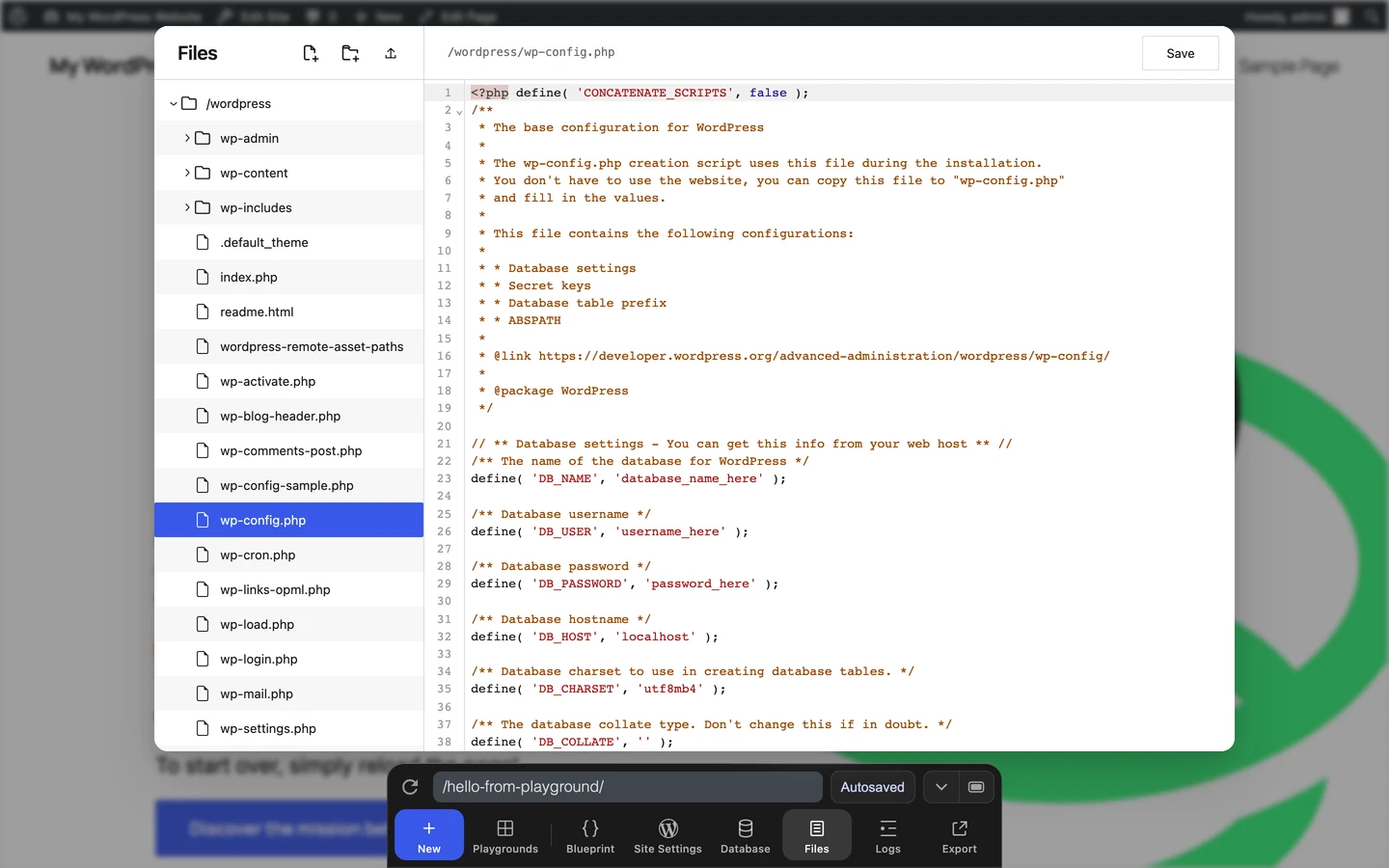
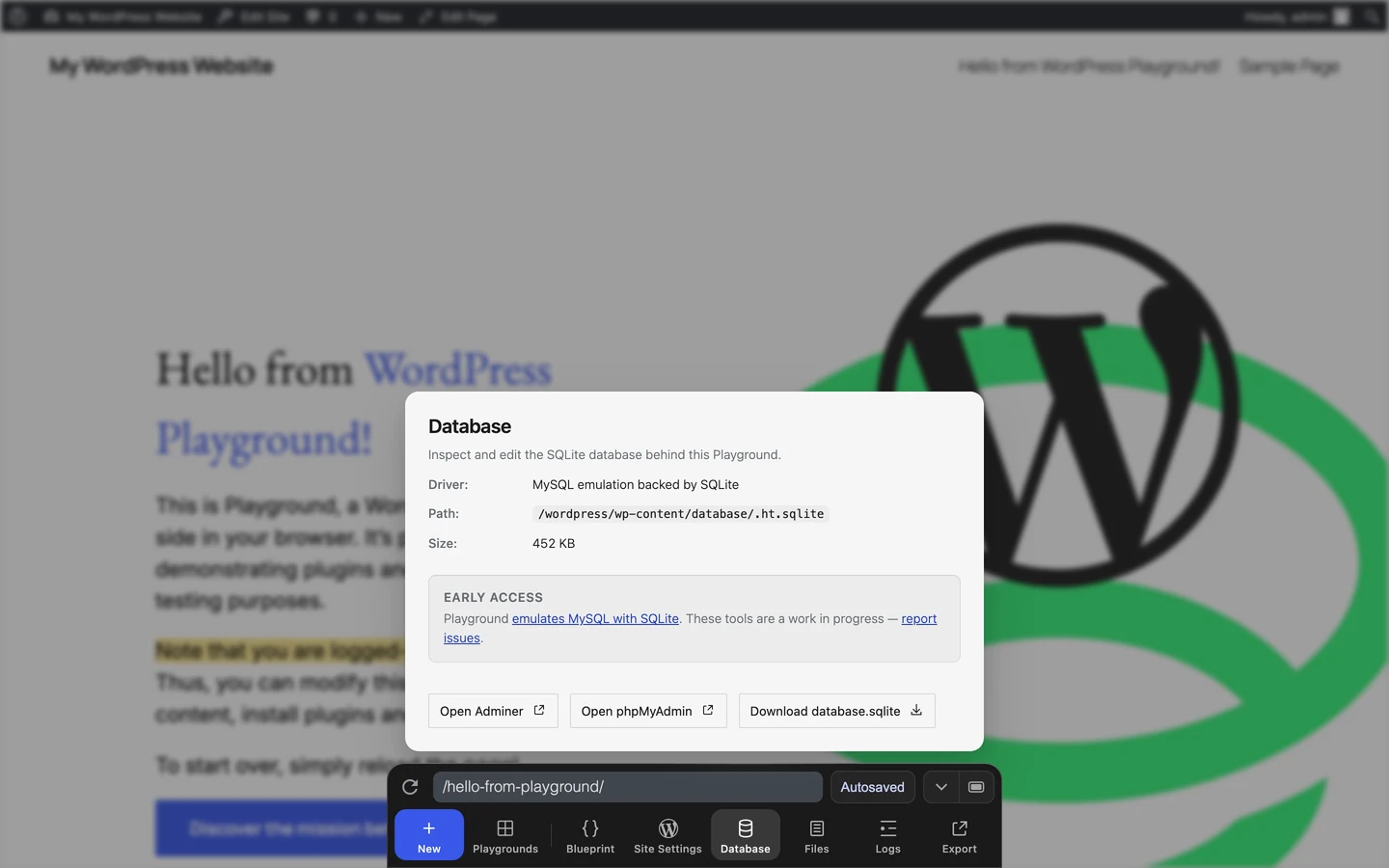
To inspect the final state, use Files, Database, and Logs from the Dock.
Use Files to confirm the Blueprint created, moved, or edited the expected files.
Use Database to inspect tables and records changed by SQL or WordPress steps.
You can also inspect a Playground instance from the browser console through
window.playground:
await playground.isDir('/wordpress/wp-content/plugins');
await playground.listFiles('/wordpress/wp-content/plugins');
See the full PlaygroundClient API.
Browser console and network requests
Open browser developer tools to check JavaScript errors, PHP debug logs, and
failed network requests. In Chrome, Firefox, and Edge, press
Ctrl + Shift + I on Windows/Linux or Cmd + Option + I on macOS.
Safari
If you have not enabled the Develop menu, go to Safari > Settings... > Advanced and check Show features for web developers.
Custom error logging
You can write your own messages with error_log() in a
runPHP step, then check the Playground
Logs panel or the browser console.
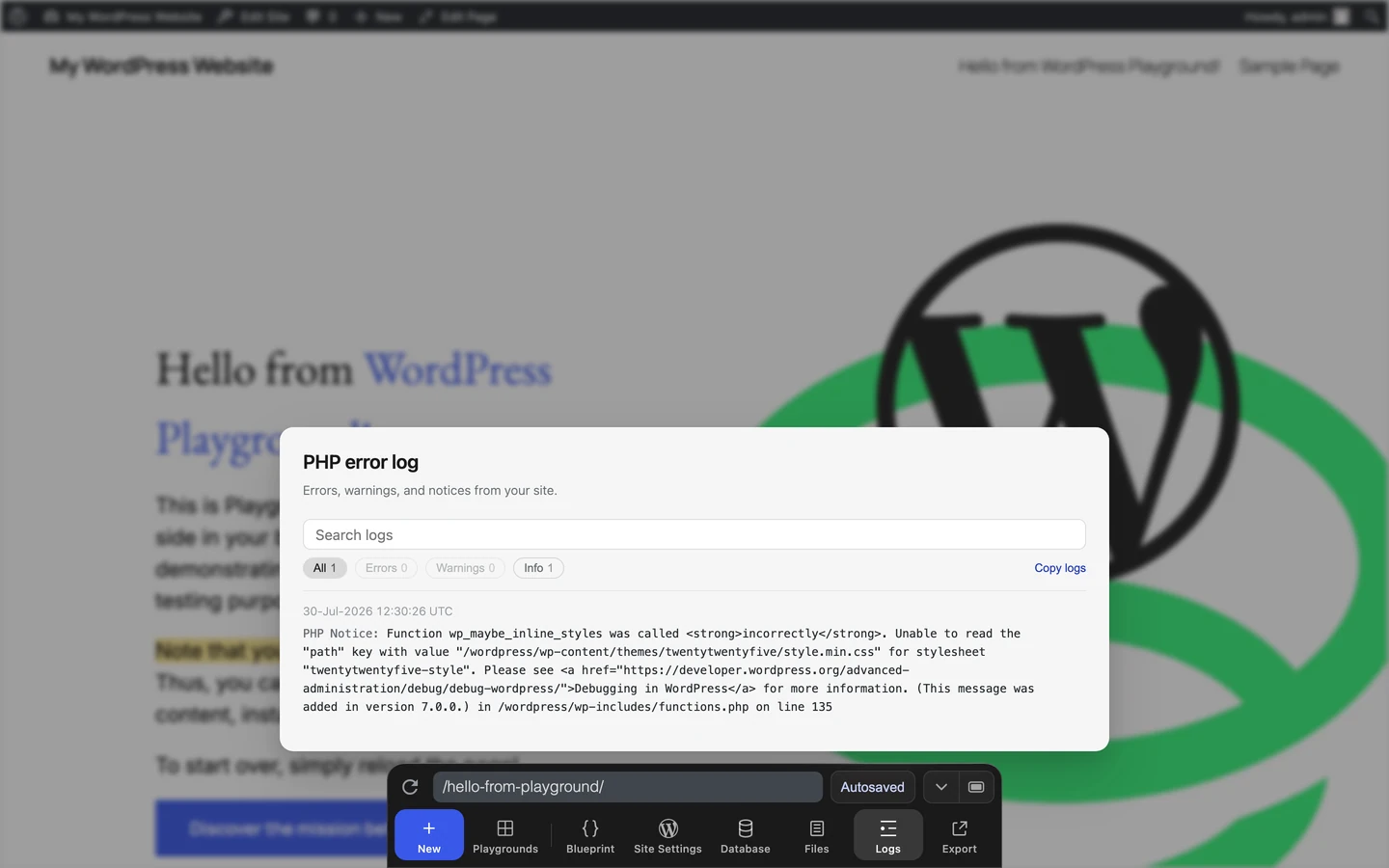
When you download your Playground as a ZIP through Export → Download as .zip, the archive also includes debug.log.
Ask for help
If you need help, open an issue and include:
- The Blueprint JSON or the public Blueprint URL.
- The exact error message.
- The failing step number, if shown.
- Browser, operating system, and whether you used the website, JavaScript API, or CLI.
- Relevant console, network, or CLI output.