બ્લુપ્રિન્ટ્સ ટ્રબલશૂટ અને ડિબગ કરો
બ્લુપ્રિન્ટની ભૂલો સામાન્ય રીતે આ ત્રણમાંથી કોઈ એક તરફ નિર્દેશ કરે છે:
- બ્લુપ્રિન્ટ JSON અમાન્ય છે.
- પ્લેગ્રાઉન્ડ બ્લુપ્રિન્ટ અથવા તેના સંસાધનોમાંથી કોઈ એકને મેળવી શક્યું નથી.
- બ્લુપ્રિન્ટ સ્ટેપ ચાલ્યું, પરંતુ વર્ડપ્રેસ, PHP, WP-CLI, અથવા પ્લગઇન નિષ્ફળ ગયું.
પ્લેગ્રાઉન્ડ દ્વારા દર્શાવવામાં આવેલા ચોક્કસ એરર નામોથી શરૂઆત કરો, અને પછી નીચે આપેલા સંબંધિત વિભાગનો ઉપયોગ કરો.
ઝડપી ચેકલિસ્ટ
- JSON સ્કીમાને માન્ય (validate) કરવા માટે બ્લુપ્રિન્ટને બ્લુપ્રિન્ટ્સ એડિટર માં પેસ્ટ કરો.
- જો બ્લુપ્રિન્ટ URL પરથી લોડ થયેલ હોય, તો તે URL ને સીધા ખાનગી (private) બ્રાઉઝર વિન્ડોમાં ખોલો અને પુષ્ટિ કરો કે તે માન્ય JSON અથવા બ્લુપ્રિન્ટ ZIP બંડલ ડાઉનલોડ કરે છે.
- જો કોઈ સ્ટેપ નિષ્ફળ જાય, તો
BlueprintStepExecutionErrorમાં સ્ટેપ નંબરની નોંધ લો. નિષ્ફળ થયેલ સ્ટેપ સામાન્ય રીતે બ્લુપ્રિન્ટ શોર્ટહેન્ડ્સ વિસ્તૃત થયા પછી તે સ્થાન પર રહેલી આઇટમ હોય છે. - બ્રાઉઝર ડેવલપર ટૂલ્સ ખોલો અને ડાઉનલોડ, CORS, PHP અથવા પ્લગઇન સક્રિયકરણ વિગતો માટે Console અને Network ટેબ્સ તપાસો.
- પ્લગઇન/થીમ સક્રિયકરણ નિષ્ફળતા માટે, PHP ચેતવણીઓ (warnings) અને ઘાતક ભૂલો (fatal errors) માટે પ્લેગ્રાઉન્ડ Logs પેનલ અથવા બ્રાઉઝર કન્સોલ તપાસો.
InvalidBlueprintError
InvalidBlueprintError નો અર્થ એ છે કે બ્લુપ્રિન્ટ બ્લુપ્રિન્ટ ડેટા ફોર્મેટ સાથે મેળ ખાતી નથી. એરર આઉટપુટમાં સામાન્ય રીતે /steps/2/pluginData અથવા /preferredVersions જેવા પાથ શામેલ હોય છે.
અણધારી પ્રોપર્ટી activate
activate એ options ની અંદર આવે છે, સીધા સ્ટેપ પર અથવા pluginData ની અંદર નહીં.
{
	"step": "installPlugin",
	"pluginData": {
		"resource": "wordpress.org/plugins",
		"slug": "woocommerce"
	},
	"options": {
		"activate": true
	}
}
preferredVersions માં અણધારી પ્રોપર્ટી plugins
preferredVersions ફક્ત php અને wp સ્વીકારે છે. ટોપ-લેવલ plugins શોર્ટહેન્ડ સાથે અથવા સ્પષ્ટ installPlugin સ્ટેપ સાથે પ્લગઇન્સ ઇન્સ્ટોલ કરો.
{
	"preferredVersions": {
		"php": "8.3",
		"wp": "latest"
	},
	"plugins": ["sqlite-database-integration"]
}
ખૂટતા slug, url, path, અથવા files
સંસાધન (resource) ઓબ્જેક્ટ અધૂરો છે અથવા ખોટા આકારનો ઉપયોગ કરે છે. સામાન્ય સુધારાઓ:
- WordPress.org પ્લગઇન:
{ "resource": "wordpress.org/plugins", "slug": "akismet" } - ZIP URL:
{ "resource": "url", "url": "https://example.com/plugin.zip" } - Git ડિરેક્ટરી:
{ "resource": "git:directory", "url": "https://github.com/org/repo", "ref": "trunk", "refType": "branch" }
બધા સમર્થિત સંસાધન આકારો માટે સંસાધનો સંદર્ભો (Resources References) જુઓ.
મિશ્રિત પ્લગઇન ઇન્સ્ટોલ પ્રોપર્ટીઝ
installPlugin માટે pluginData નો ઉપયોગ કરો. pluginData અને જૂના ઉદાહરણો અથવા pluginZipFile જેવા કસ્ટમ ઓબ્જેક્ટ બંને એકસાથે આપશો નહીં.
WordPress.org પ્લગઇન સંસાધનને અલગ slug ની પણ જરૂર છે:
{
	"step": "installPlugin",
	"pluginData": {
		"resource": "wordpress.org/plugins",
		"slug": "woocommerce"
	}
}
"resource": "wordpress.org/plugins/woocommerce" લખશો નહીં.
BlueprintFetchError
BlueprintFetchError નો અર્થ એ છે કે પ્લેગ્રાઉન્ડ ?blueprint-url= માં આપવામાં આવેલી ફાઇલ લોડ કરી શક્યું નથી.
ચકાસો કે URL:
- સાર્વજનિક છે અને તેને કૂકીઝ, લોગિન, કામચલાઉ સત્ર (session) અથવા VPN ની જરૂર નથી.
- સીધું ખોલવામાં આવે ત્યારે HTTP 200 રિટર્ન કરે છે.
- માન્ય JSON અથવા તેની અંદર
blueprint.jsonધરાવતું ZIP બંડલ પૂરું પાડે છે. Access-Control-Allow-Origin: *અથવા અન્ય હેડર મોકલે છે જેhttps://playground.wordpress.netને મંજૂરી આપે છે.- રો (raw) ફાઇલ URL નો ઉપયોગ કરે છે, રિપોઝીટરી HTML પેજનો નહીં.
GitHub માટે, github.com/.../blob/... ના બદલે raw.githubusercontent.com URL નો ઉપયોગ કરો. GitLab માટે, /-/blob/ પેજના બદલે રો ફાઇલ URL નો ઉપયોગ કરો.
# Good
https://raw.githubusercontent.com/WordPress/blueprints/trunk/blueprints/welcome/blueprint.json

# Not a raw JSON response
https://github.com/WordPress/blueprints/blob/trunk/blueprints/welcome/blueprint.json
કામચલાઉ ટનલ URL, સ્થાનિક ડેવલપમેન્ટ URL અને ડ્રાફ્ટ રીલીઝ એસેટ્સ ઘણીવાર નિષ્ફળ જાય છે કારણ કે બ્રાઉઝર તેમના સુધી પહોંચી શકતું નથી અથવા તેઓ ક્રોસ-ઓરિજિન (cross-origin) વિનંતીઓને મંજૂરી આપતા નથી. બ્લુપ્રિન્ટને CORS સક્ષમ સાથે સાર્વજનિક હોસ્ટ પર ખસેડો.
બ્લુપ્રિન્ટ ફાઇલ માન્ય JSON કે ZIP ફાઇલ નથી
આનો અર્થ એ છે કે પ્લેગ્રાઉન્ડને રિસ્પોન્સ મળ્યો હતો, પરંતુ તે રિસ્પોન્સ બ્લુપ્રિન્ટ ન હતો. URL એ કદાચ HTML પેજ, 404 પેજ, રિપોઝીટરી ફાઇલ વ્યૂઅર, પ્રોક્સી ચેતવણી, લોગિન પેજ અથવા ક્ષતિગ્રસ્ત (corrupted) ZIP રિટર્ન કર્યું હોઈ શકે છે.
URL સીધું ખોલો અને તપાસો કે:
- JSON URL માન્ય બ્લુપ્રિન્ટ JSON રિટર્ન કરે છે.
- ZIP બંડલ URL વાસ્તવિક ZIP આર્કાઇવ ડાઉનલોડ કરે છે.
- બ્લુપ્રિન્ટ બંડલ્સમાં ZIP ના રૂટ પર
blueprint.jsonશામેલ છે. - રિસ્પોન્સ કોઈ નાનું HTML અથવા ટેક્સ્ટ એરર પેજ નથી.
URIError: URI malformed
URIError: URI malformed સામાન્ય રીતે URL માં ક્ષતિગ્રસ્ત એન્કોડેડ બ્લુપ્રિન્ટ ફ્રેગમેન્ટ તરફ નિર્દેશ કરે છે, નિષ્ફળ બ્લુપ્રિન્ટ સ્ટેપ તરફ નહીં. અમાન્ય % એસ્કેપ્સ, ડબલ-એન્કોડેડ ફ્રેગમેન્ટ્સ અથવા # પછી પેસ્ટ કરેલ રો JSON માટે તપાસો. મૂળ બ્લુપ્રિન્ટમાંથી લિંક ફરી બનાવો અને તેને એકવાર એન્કોડ કરો, અથવા Base64 નો ઉપયોગ કરો. એન્કોડેડ બ્લુપ્રિન્ટ ફ્રેગમેન્ટ્સ જુઓ.
ResourceDownloadError
ResourceDownloadError નો અર્થ એ છે કે બ્લુપ્રિન્ટ લોડ થઈ ગઈ છે, પરંતુ કોઈ સ્ટેપ પ્લગઇન ZIP, થીમ ZIP, WXR ફાઇલ અથવા આયાત કરેલ સાઇટ આર્કાઇવ જેવા સંસાધનને ડાઉનલોડ કરી શક્યું નથી.
સંસાધન URL ની પુષ્ટિ કરો:
- વાસ્તવિક ફાઇલ ડાઉનલોડ કરે છે, HTML પેજ, રીડાયરેક્ટ ચેતવણી અથવા સમાપ્ત થયેલ (expired) આર્ટિફેક્ટ નહીં.
- સાર્વજનિક છે અને પ્રમાણીકરણ (authentication) ની જરૂર નથી.
- ક્રોસ-ઓરિજિન વિનંતીઓને મંજૂરી આપે છે.
- સીધું ફાઇલ URL છે. કેટલાક રીલીઝ પેજીસ અને CI આર્ટિફેક્ટ પેજીસ માનવ પેજીસ (human pages) છે, સીધા ડાઉનલોડ્સ નથી.
- હજી પણ અસ્તિત્વમાં છે. કામચલાઉ લિંક્સ અને CI આર્ટિફેક્ટ્સ સમાપ્ત થઈ શકે છે.
Git રિપોઝીટરીમાં સોર્સ કોડ માટે, git:directory સંસાધન ને પ્રાધાન્ય આપો. બિલ્ટ ZIP આર્ટિફેક્ટ્સ માટે url સંસાધનનો ઉપયોગ કરો જે પહેલેથી જ સાર્વજનિક રૂપે ડાઉનલોડ કરવા યોગ્ય છે.
BlueprintStepExecutionError
BlueprintStepExecutionError નો અર્થ એ છે કે બ્લુપ્રિન્ટ ચાલવાનું શરૂ થયા પછી ચોક્કસ પગલું (step) નિષ્ફળ ગયું. સંદેશમાં એક સ્ટેપ નંબર શામેલ છે:
BlueprintStepExecutionError: Error when executing the blueprint step #4
મેળ ખાતા સ્ટેપનું નિરીક્ષણ કરવા માટે તે નંબરનો ઉપયોગ કરો. જો તમારી બ્લુપ્રિન્ટ plugins, login, siteOptions અથવા constants જેવા શોર્ટહેન્ડ્સનો ઉપયોગ કરે છે, તો પ્લેગ્રાઉન્ડ બ્લુપ્રિન્ટ ચલાવતા પહેલા તેને સ્ટેપ્સમાં વિસ્તૃત કરે છે. જ્યારે ક્રમ મહત્વપૂર્ણ હોય ત્યારે સ્પષ્ટ steps નો ઉપયોગ કરો.
?plugin=..., ?theme=..., ?php=..., ?wp=..., અને ?networking=yes જેવા URL ક્વેરી પેરામીટર્સ પણ એક ગર્ભિત (implicit) બ્લુપ્રિન્ટ બનાવે છે. તે URL માંથી આવતી ભૂલો હજુ પણ બ્લુપ્રિન્ટ એક્ઝિક્યુશન ભૂલો જ છે, અને જનરેટ થયેલ સ્ટેપ્સ રિપોર્ટ કરેલા સ્ટેપ નંબરને અસર કરે છે.
PHP.run() failed with exit code 255
એક્ઝિટ કોડ 255 નો સામાન્ય રીતે અર્થ એ થાય છે કે PHP માં કોઈ ઘાતક ભૂલ (fatal error) આવી છે. આઉટપુટમાં પ્રથમ Fatal error, Uncaught, અથવા TypeError લાઇન શોધો. તેની આસપાસનું વિશાળ HTML એરર પેજ સામાન્ય રીતે વર્ડપ્રેસની સામાન્ય જટિલ ભૂલ સ્ક્રીન (critical error screen) હોય છે.
ડિબગ કરતી વખતે આઉટપુટને વધુ ઉપયોગી બનાવવા માટે, બ્લુપ્રિન્ટની શરૂઆત પાસે વર્ડપ્રેસ ડિબગ કોન્સ્ટન્ટ્સ સક્ષમ કરો:
{
	"step": "defineWpConfigConsts",
	"consts": {
		"WP_DEBUG": true,
		"WP_DEBUG_LOG": true,
		"WP_DEBUG_DISPLAY": true,
		"WP_DISABLE_FATAL_ERROR_HANDLER": true
	}
}
પછી બ્લુપ્રિન્ટ ફરીથી ચલાવો અને પ્લેગ્રાઉન્ડ Logs પેનલ અથવા બ્રાઉઝર કન્સોલ તપાસો.
PHP.run() failed with exit code 1
જ્યારે WP-CLI અથવા વર્ડપ્રેસ એપ્લિકેશન ભૂલ રિટર્ન કરે છે ત્યારે ઘણીવાર એક્ઝિટ કોડ 1 દેખાય છે. પહેલા Stderr વિભાગ વાંચો. તે સામાન્ય રીતે અસમર્થિત દલીલ (unsupported argument), ખૂટતા સંસાધન અથવા આદેશ-વિશિષ્ટ નિષ્ફળતાનું નામ દર્શાવે છે.
કેટલાક WP-CLI આદેશો પ્લેગ્રાઉન્ડમાં અલગ રીતે વર્તે છે કારણ કે વર્ડપ્રેસ SQLite સાથે WebAssembly માં ચાલે છે. આદેશો નાના રાખો અને બ્લુપ્રિન્ટમાં લાંબી શૃંખલા ઉમેરતા પહેલા તેનું વ્યક્તિગત રીતે પરીક્ષણ કરો.
Undefined constant ABSPATH
આ સામાન્ય રીતે runPHP સ્ટેપમાં થાય છે જે પહેલા વર્ડપ્રેસ લોડ કર્યા વિના વર્ડપ્રેસ API ને કૉલ કરે છે.
કોઈપણ વર્ડપ્રેસ ફંક્શન, કોન્સ્ટન્ટ, ઓપ્શન અથવા પ્લગઇન API પહેલાં wp-load.php ઉમેરો:
{
	"step": "runPHP",
	"code": "<?php require '/wordpress/wp-load.php'; update_option('blogname', 'Demo site');"
}
Plugin could not be activated
પ્લગઇન સક્રિયકરણ ભૂલો સામાન્ય રીતે પ્લગઇન તરફથી જ આવે છે, બ્લુપ્રિન્ટ રનર તરફથી નહીં. સામાન્ય કારણો:
- પ્લગઇનને નવા PHP વર્ઝન અથવા વર્ડપ્રેસ વર્ઝનની જરૂર હોય છે.
- સક્રિયકરણ પર પ્લગઇનમાં ઘાતક ભૂલ (fatal error) છે.
- પ્લગઇન અન્ય પ્લગઇન પર આધાર રાખે છે જે ઇન્સ્ટોલ અથવા સક્રિય કરેલ નથી.
- પ્લગઇન સક્રિયકરણ દરમિયાન રીડાયરેક્ટ કરે છે અથવા અણધાર્યું આઉટપુટ છાપે છે.
- પ્લગઇન ZIP એવા ફોલ્ડર અથવા મુખ્ય ફાઇલ નામમાં એક્સટ્રેક્ટ થાય છે જે સ્ટેપ સક્રિય કરી રહ્યું હોય તે પાથ કરતા અલગ હોય છે.
જો એરર કહે કે વર્તમાન PHP અથવા વર્ડપ્રેસ વર્ઝન ન્યૂનતમ જરૂરિયાતોને પૂર્ણ કરતું નથી, તો preferredVersions સેટ કરો:
{
	"preferredVersions": {
		"php": "8.3",
		"wp": "latest"
	}
}
WordPress exited with exit code 0
જ્યારે વર્ડપ્રેસ કોડ 0 સાથે બહાર નીકળે ત્યારે પણ સક્રિયકરણ નિષ્ફળ થઈ શકે છે. આનો સામાન્ય રીતે અર્થ એ થાય છે કે વર્ડપ્રેસે PHP પ્રોસેસ ક્રેશ થવાને બદલે સક્રિયકરણ ભૂલ પ્રતિસાદ આપ્યો છે. જ્યારે સંદેશ કહે Inspect the "debug" logs, ત્યારે પ્લેગ્રાઉન્ડ Logs પેનલ, બ્રાઉઝર કન્સોલ અથવા CLI આઉટપુટ તપાસો.
PHP ચેતવણીઓ, સક્રિયકરણ દરમિયાન પ્રિન્ટ થયેલ રીડાયરેક્ટ્સ અથવા આઉટપુટ, ખૂટતા ડિપેન્ડન્સી પ્લગઇન્સ, અથવા પ્લગઇનની ન્યૂનતમ PHP/વર્ડપ્રેસ જરૂરિયાતો માટે જુઓ.
Current PHP or WordPress version does not meet minimum requirements
વર્ઝન મેળ ન ખાવાની ભૂલોમાં ઘણીવાર આ પ્રકારનું લખાણ શામેલ હોય છે:
Current PHP version (7.4.33) does not meet minimum requirements. The plugin requires PHP 8.0.
અથવા:
Current WordPress version (6.9.4) does not meet minimum requirements. The plugin requires WordPress 7.0.
preferredVersions ને સુસંગત PHP અને વર્ડપ્રેસ વર્ઝન પર સેટ કરો, અથવા પ્લેગ્રાઉન્ડમાં ઉપલબ્ધ વર્ઝનને સપોર્ટ કરતી પ્લગઇન/થીમ રીલીઝનો ઉપયોગ કરો.
જો એરર આ હોય:
Failed to download WordPress 6.9.0 (HTTP 404)
તો વિનંતી કરેલ વર્ડપ્રેસ બિલ્ડ ઉપલબ્ધ નથી. latest, સમર્થિત રીલીઝ થયેલ વર્ઝન અથવા સમર્થિત બીટા/નાઇટલી (beta/nightly) મૂલ્યનો ઉપયોગ કરો.
જો એરર કહે કે Plugin file does not exist, તો ઇન્સ્ટોલ કરેલ ફોલ્ડર નામ તપાસો. અસામાન્ય ફોલ્ડર નામોવાળા ZIP URL માટે, targetFolderName સેટ કરો:
{
	"step": "installPlugin",
	"pluginData": {
		"resource": "url",
		"url": "https://example.com/my-plugin.zip"
	},
	"options": {
		"activate": true,
		"targetFolderName": "my-plugin"
	}
}
જો પ્લગઇનમાં ડિપેન્ડન્સી હોય, તો પહેલા તે ડિપેન્ડન્સીઓને સ્પષ્ટ સ્ટેપ્સ સાથે ઇન્સ્ટોલ અને સક્રિય કરો.
Theme could not be activated
થીમ સક્રિયકરણ નિષ્ફળતાઓનો સામાન્ય રીતે અર્થ એ થાય છે કે થીમ ફોલ્ડરનું નામ ખોટું છે, થીમ ZIP કોઈ અણધારી ડિરેક્ટરીમાં એક્સટ્રેક્ટ થઈ ગઈ છે, અથવા થીમ કોડને કારણે વર્ડપ્રેસ/PHP ભૂલ થઈ છે.
થીમ ઇન્સ્ટોલ કરતી વખતે options.activate સાથે installTheme નો ઉપયોગ કરો:
{
	"step": "installTheme",
	"themeData": {
		"resource": "wordpress.org/themes",
		"slug": "twentytwentyfour"
	},
	"options": {
		"activate": true
	}
}
જો તમે એકલા activateTheme સ્ટેપનો ઉપયોગ કરો છો, તો wp-content/themes ની અંદર ફોલ્ડરનું નામ પાસ કરો, સંપૂર્ણ URL અથવા ZIP ફાઇલનામ નહીં.
Could not write to a file
આવી ભૂલોનો અર્થ એ છે કે પેરેન્ટ ડિરેક્ટરી અસ્તિત્વમાં નથી:
Could not write to "/wordpress/wp-content/plugins/example/index.php":
There is no such file or directory OR the parent directory does not exist.
પહેલા mkdir સાથે ડિરેક્ટરી બનાવો, અથવા literal:directory સંસાધન સાથે writeFiles નો ઉપયોગ કરો.
[
	{
		"step": "mkdir",
		"path": "/wordpress/wp-content/plugins/example"
	},
	{
		"step": "writeFile",
		"path": "/wordpress/wp-content/plugins/example/index.php",
		"data": "<?php /* Plugin Name: Example */"
	}
]
Could not unzip file
આનો સામાન્ય રીતે અર્થ એ થાય છે કે ફાઇલ માન્ય ZIP આર્કાઇવ નથી. URL એ કદાચ HTML પેજ, એરર રિસ્પોન્સ, લોગિન પેજ અથવા અધૂરી ફાઇલ રિટર્ન કરી હોઈ શકે છે.
જો આઉટપુટ કહે Could not unzip file. Error code: 19, તો ચકાસો કે ડાઉનલોડ એક ZIP આર્કાઇવ છે. નાની ફાઇલ સાઇઝનો અર્થ ઘણીવાર એ થાય છે કે સર્વરે આર્કાઇવને બદલે HTML એરર પેજ રિટર્ન કર્યું છે.
URL સીધું ખોલો અને પુષ્ટિ કરો કે બ્રાઉઝર ZIP ડાઉનલોડ કરે છે. જો તમે GitHub અથવા CI આર્ટિફેક્ટનો ઉપયોગ કરી રહ્યાં છો, તો ડાયરેક્ટ-ડાઉનલોડ URL નો ઉપયોગ કરો અને ખાતરી કરો કે રીલીઝ અથવા આર્ટિફેક્ટ સાર્વજનિક છે.
WP-CLI command pitfalls
wp-cli સ્ટેપ પ્લેગ્રાઉન્ડની અંદર WP-CLI ચલાવે છે. તે સેટઅપ કાર્યો માટે ઉપયોગી છે, પરંતુ દરેક આદેશ અથવા શેલ સુવિધા સ્થાનિક ટર્મિનલની જેમ વર્તતી નથી.
સામાન્ય સુધારાઓ:
- સ્ટેપના નામ તરીકે
"wp-cli"નો ઉપયોગ કરો,"wpcli"અથવા"cli"નો નહીં. - આદેશો કેન્દ્રિત રાખો. એક જટિલ શેલ આદેશ કરતાં બહુવિધ
wp-cliસ્ટેપ્સને પ્રાધાન્ય આપો. - શેર કરેલ બ્લુપ્રિન્ટ્સમાં
$(...)જેવા શેલ સબસ્ટીટ્યુશન્સ ટાળો. વર્ડપ્રેસ API ની જરૂર હોય તેવા લોજિક માટેrunPHPનો ઉપયોગ કરો. - તમે જે WP-CLI આદેશનો ઉપયોગ કરી રહ્યાં છો તેની સામે પેરામીટર નામો તપાસો. ઉદાહરણ તરીકે, આદેશ-વિશિષ્ટ પેરામીટર્સ
wp post list,wp post deleteઅને પ્લગઇન દ્વારા પ્રદાન કરેલ આદેશો વચ્ચે અલગ હોઈ શકે છે. - જો પ્લગઇન દ્વારા પ્રદાન કરેલ WP-CLI આદેશ પ્લગઇન સ્ટેક ટ્રેસ સાથે નિષ્ફળ જાય છે, તો સુધારો સામાન્ય રીતે તે પ્લગઇનમાં અથવા આદેશમાં પાસ કરેલા ઇનપુટ ડેટામાં કરવાનો રહે છે.
- જો કોઈ આદેશ
unknown --post_type parameterઅથવાunknown --format parameterસાથે નિષ્ફળ જાય, તો તપાસો કે ફ્લેગ્સ પાઇપલાઇનમાં અન્ય આદેશના છે કે નહીં. - જો કોઈ પ્લગઇન આદેશ
Unsupported argument type passed to WP_CLI::error_to_string(): 'NULL'સાથે નિષ્ફળ જાય, તો પુષ્ટિ કરો કે પ્લગઇન સક્રિય છે, આયાત કરેલ ડેટા અસ્તિત્વમાં છે, અને આદેશ ઇનપુટ માન્ય સંસાધન તરફ નિર્દેશ કરે છે.
WP-CLI: માઉન્ટ કરેલી સાઇટ્સ પર ડેટાબેઝ કનેક્શન સ્થાપિત કરવામાં ભૂલ
માઉન્ટ કરેલી પ્લેગ્રાઉન્ડ સાઇટ સાથે wp-cli નો ઉપયોગ કરતી વખતે, ઉદાહરણ તરીકે --mount-before-install દ્વારા, તમને "Error establishing a database connection" નો સામનો કરવો પડી શકે છે. આવું એટલા માટે થાય છે કારણ કે વર્ડપ્રેસ પ્લેગ્રાઉન્ડ ડિફૉલ્ટ રૂપે તેની આંતરિક ફાઇલોમાંથી SQLite ડેટાબેઝ ઇન્ટિગ્રેશન પ્લગઇન લોડ કરે છે, માઉન્ટ કરેલી ડિરેક્ટરીમાંથી નહીં.
માઉન્ટ થયેલ વર્ડપ્રેસ સાઇટમાં સ્પષ્ટપણે SQLite ઇન્ટિગ્રેશન પ્લગઇન ઉમેરો:
{
	"preferredVersions": {
		"php": "8.3",
		"wp": "latest"
	},
	"plugins": ["sqlite-database-integration"],
	"steps": [
		{
			"step": "login",
			"username": "admin"
		}
	]
}
પછી માઉન્ટ થયેલ સાઇટ સાથે બ્લુપ્રિન્ટ ચલાવો:
mkdir wordpress
npx @wp-playground/cli server --mount-before-install=wordpress:/wordpress --blueprint=./blueprint.json
ડિબગિંગ સાધનો
બ્લુપ્રિન્ટ્સ એડિટર
બ્લુપ્રિન્ટ્સ બનાવવા, માન્ય કરવા (validate) અને પૂર્વાવલોકન (preview) કરવા માટે ઇન-બ્રાઉઝર બ્લુપ્રિન્ટ્સ એડિટર નો ઉપયોગ કરો.
સાવધાન
એડિટર વિકાસ હેઠળ છે અને એમ્બેડ કરેલ પ્લેગ્રાઉન્ડ ક્યારેક લોડ થવામાં નિષ્ફળ જાય છે. આ સમસ્યામાંથી બહાર નીકળવા માટે, પૃષ્ઠને તાજું (refresh) કરો.
ફાઇલસિસ્ટમ અને ડેટાબેઝ નિરીક્ષણ
કેટલાક બ્લુપ્રિન્ટ સ્ટેપ્સ, જેમ કે writeFile, આંતરિક ફાઇલસિસ્ટમમાં ફેરફાર કરે છે. અન્ય, જેમ કે runSql, ડેટાબેઝમાં ફેરફાર કરે છે.
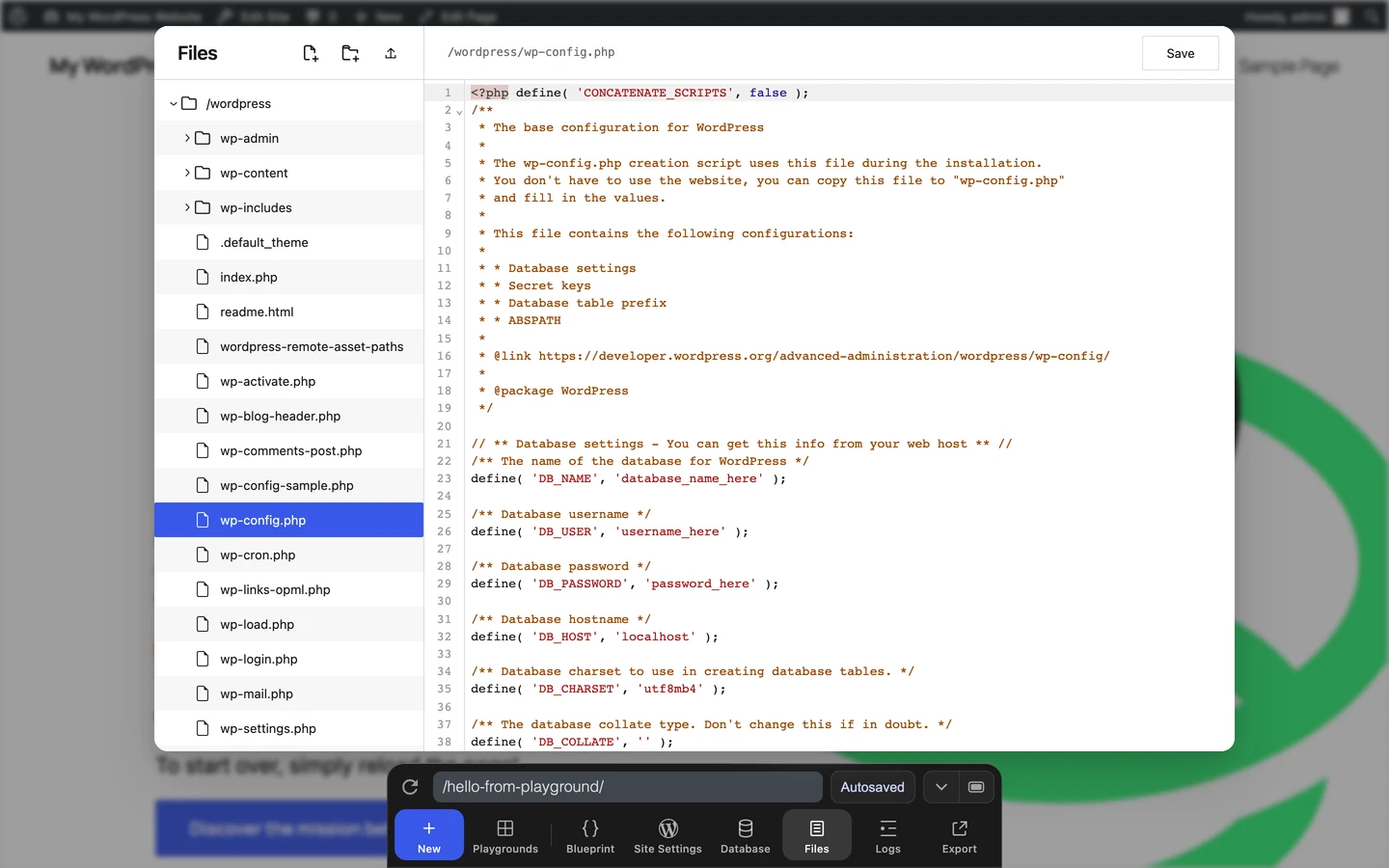
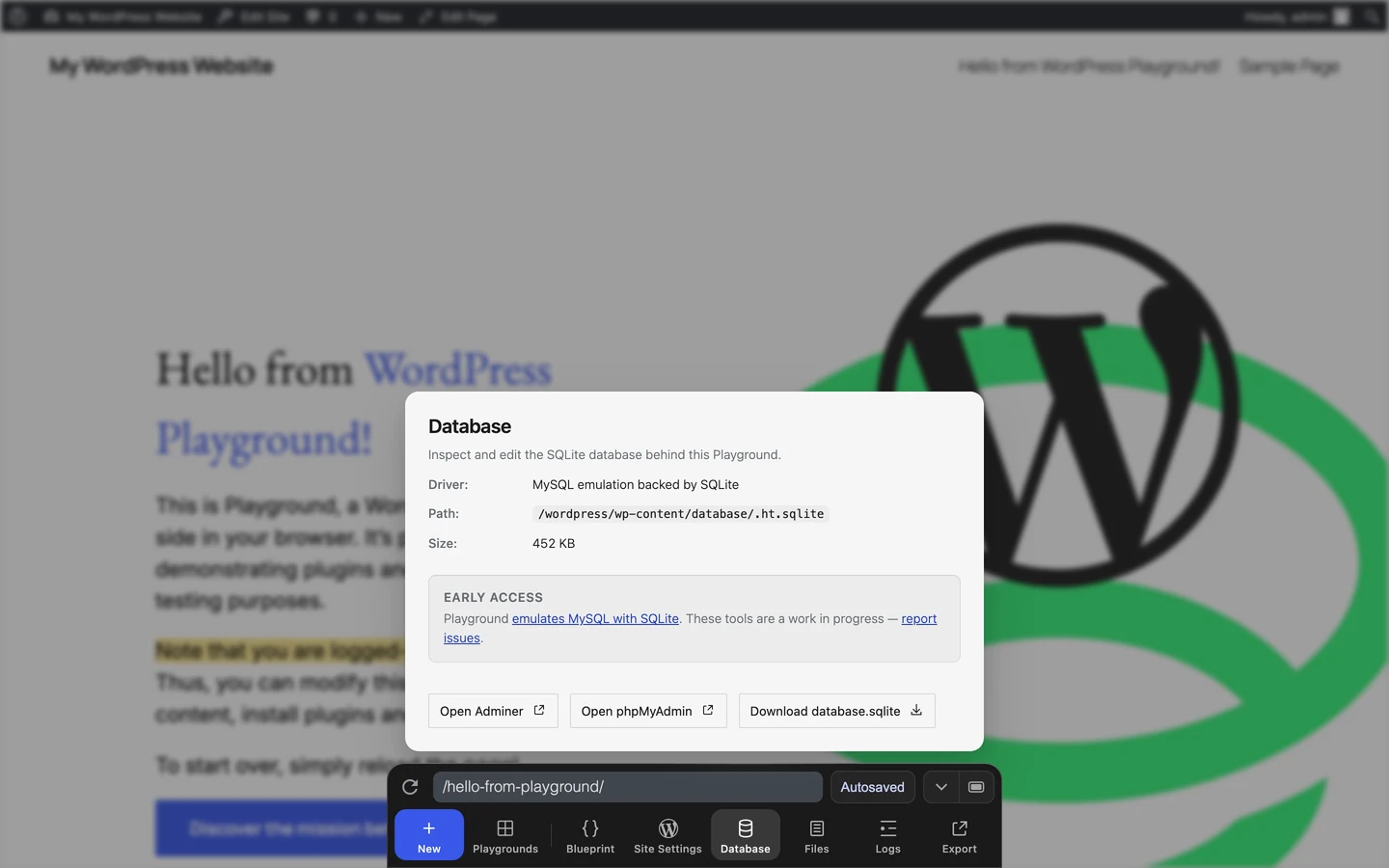
અંતિમ સ્થિતિનું નિરીક્ષણ કરવા માટે, ડોક (Dock) માંથી Files, Database, અને Logs નો ઉપયોગ કરો.
બ્લુપ્રિન્ટ દ્વારા અપેક્ષિત ફાઇલો બનાવી, ખસેડી અથવા સંપાદિત કરવામાં આવી છે તેની પુષ્ટિ કરવા માટે Files નો ઉપયોગ કરો.
SQL અથવા વર્ડપ્રેસ સ્ટેપ્સ દ્વારા બદલાયેલ કોષ્ટકો (tables) અને રેકોર્ડ્સનું નિરીક્ષણ કરવા માટે Database નો ઉપયોગ કરો.
તમે window.playground દ્વારા બ્રાઉઝર કન્સોલમાંથી પ્લેગ્રાઉન્ડ ઇન્સ્ટન્સનું નિરીક્ષણ પણ કરી શકો છો:
await playground.isDir('/wordpress/wp-content/plugins');
await playground.listFiles('/wordpress/wp-content/plugins');
સંપૂર્ણ PlaygroundClient API જુઓ.
બ્રાઉઝર કન્સોલ અને નેટવર્ક વિનંતીઓ
JavaScript ભૂલો, PHP ડિબગ લૉગ્સ અને નિષ્ફળ ગયેલી નેટવર્ક વિનંતીઓ તપાસવા માટે બ્રાઉઝર ડેવલપર ટૂલ્સ ખોલો. Chrome, Firefox અને Edge માં, Windows/Linux પર Ctrl + Shift + I અથવા macOS પર Cmd + Option + I દબાવો.
Safari
જો તમે ડેવલપ મેનૂ સક્ષમ ન કર્યું હોય, તો Safari > Settings... > Advanced પર જાઓ અને Show features for web developers ચેક કરો.
કસ્ટમ એરર લોગિંગ
તમે runPHP સ્ટેપ માં error_log() સાથે તમારા પોતાના સંદેશા લખી શકો છો, પછી પ્લેગ્રાઉન્ડ Logs પેનલ અથવા બ્રાઉઝર કન્સોલ તપાસી શકો છો.
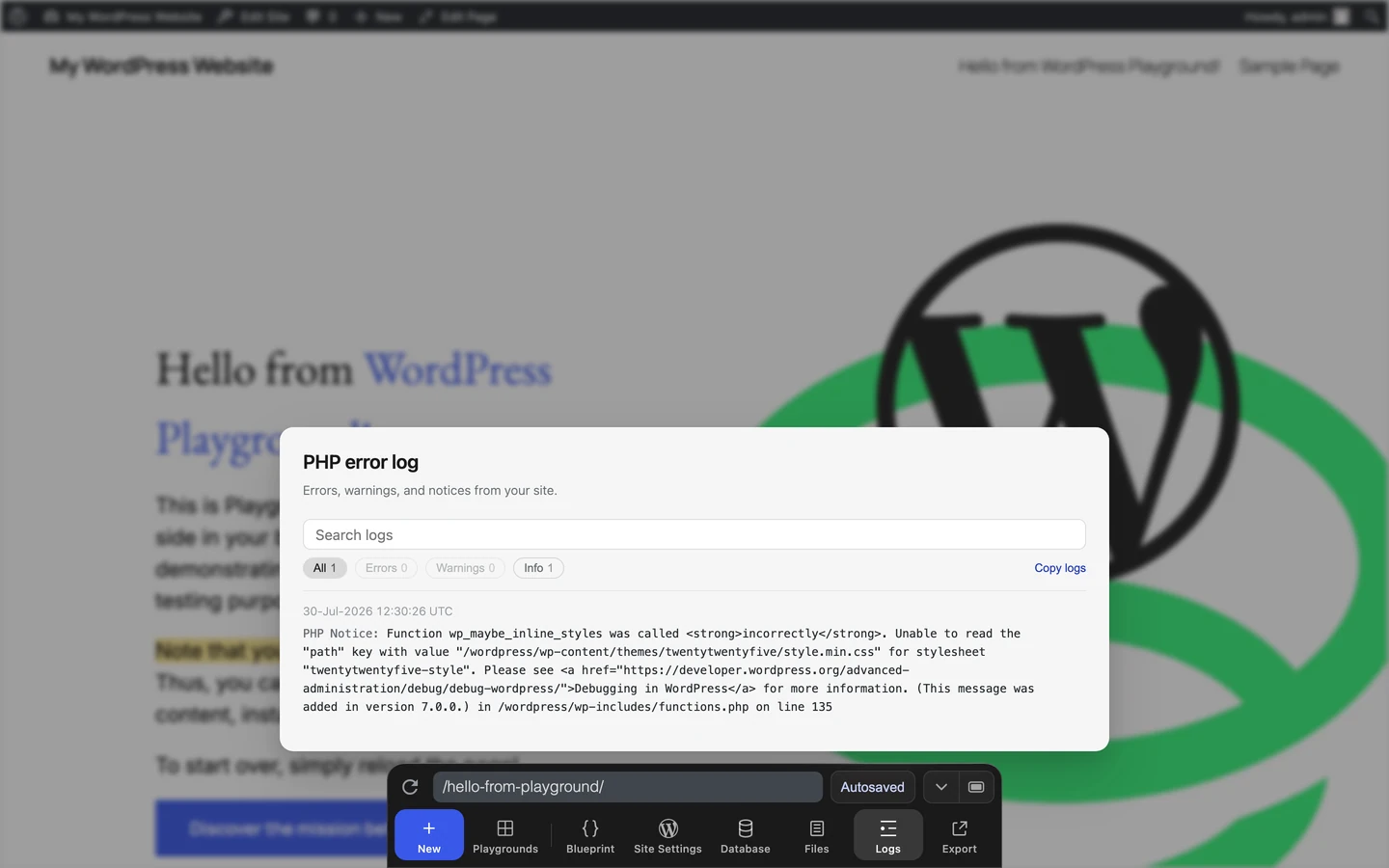
જ્યારે તમે Export → Download as .zip દ્વારા તમારા પ્લેગ્રાઉન્ડને ZIP તરીકે ડાઉનલોડ કરો છો, ત્યારે આર્કાઇવમાં debug.log પણ શામેલ હોય છે.
મદદ માટે પૂછો
જો તમને મદદની જરૂર હોય, તો એક ઇશ્યૂ (issue) ખોલો અને તેમાં નીચેની બાબતો શામેલ કરો:
- બ્લુપ્રિન્ટ JSON અથવા સાર્વજનિક બ્લુપ્રિન્ટ URL.
- ચોક્કસ એરર મેસેજ.
- નિષ્ફળ થયેલ સ્ટેપ નંબર, જો દર્શાવેલ હોય તો.
- બ્રાઉઝર, ઓપરેટિંગ સિસ્ટમ, અને તમે વેબસાઇટ, JavaScript API અથવા CLI નો ઉપયોગ કર્યો હતો કે નહીં.
- સંબંધિત કન્સોલ, નેટવર્ક અથવા CLI આઉટપુટ.