Applying patches and PRs
The available sources follow the project
On a WordPress Core site, the panel accepts pull requests, local .diff / .patch files and attachments from Trac. A Gutenberg site takes pull requests from WordPress/gutenberg: the ones that fix its linked issue are listed on the issue card, and any other can be pasted by URL or number. Gutenberg has no patch-file picker or Trac attachments.
The Apply a patch or PR panel lets you test someone else's work before adding your own. Pull requests and patch files take different paths: a PR becomes its own checkout with the author's commits, while a .diff/.patch file is applied on top of the branch you are already using. Your own changes are kept with their branch.
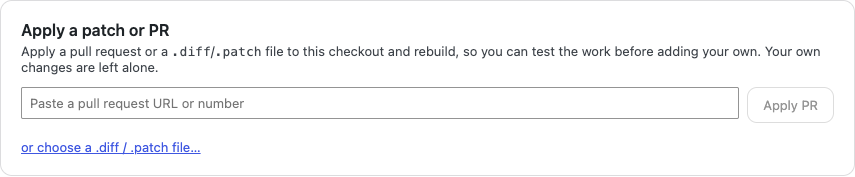
On a Gutenberg site, the corresponding card is focused on pull requests:

Choose what to apply
Every site can bring in a pull request in either of these ways:
- Paste a pull request URL or number into the field and click Apply PR.
- Click Apply… next to a pull request linked from the site's Trac ticket or GitHub issue.
On a Core site there are two additional patch-file routes: click or choose a .diff / .patch file… to pick one from disk, or click Apply… next to an attachment in the Trac ticket panel.
Preview a pull request
When you choose a pull request, the preview lists the files changed by its commits and says whether changing checkout requires npm install. Nothing has changed yet.
Click Apply and rebuild to continue. The app parks the work on your current ticket or issue, creates or reuses pr/NNNN, and checks out the PR's commits exactly as its author wrote them. In a terminal, git status now reports On branch pr/NNNN and a clean working tree until you make edits of your own.
This avoids trying to make an old PR's diff fit today's trunk. It also keeps authorship and commit history visible. A closed PR can still be checked out for investigation; its state does not change what Git has stored.
Preview a patch file on a Core site
When you choose a .diff/.patch file or a Trac attachment, nothing is changed yet. The panel first shows what the patch would do:
- The list of files it changes.
- A warning if this ticket already has work in any of those files, measured from the trunk snapshot the ticket started on. The warning names your own edits and changes from an applied patch separately; a file from an applied patch may contain your edits too. The new patch is applied on top of that work: it succeeds if the changes do not overlap, and fails without touching anything if they do. Save a patch of your work first if you want a copy — see Submitting your changes.
- Which files are binary and will be skipped: a patch that carries a binary file's data (one made with
git diff --binary) applies it; one that only says the file differs cannot, and the preview names it. - Whether it changes
package-lock.json, in which case dependencies will be installed before the rebuild.
Click Apply and rebuild to go ahead, or Cancel to back out.
The apply itself is Git's own git apply, the same command whoever receives your patch will run, so "does it fit" means the same thing on both ends. It is all or nothing: when any part of the patch does not fit, nothing is written, and the panel says which files and, inside each, which regions. Files the patch adds stay unstaged, as they always did.
Apply and rebuild
The panel shows each step as it runs: applying the patch, installing dependencies if needed, and rebuilding. When it finishes, the panel reports what is applied — the patch's name, how many files it changed, and when.
If the build watch is running and the patch does not move package-lock.json, there is no build step: the patch is applied and left for the watch to compile, and the checklist says so. While the watch compiles it, the applied banner says so and the Build watcher tab title reads (compiling); wait for both to clear before trying the site. A pull request is different: its checkout pauses the watch and resumes it after. On WordPress Core the checkout runs the build itself before the watch comes back. On a Gutenberg site the resumed watch rebuilds build/ from scratch anyway, so the checkout leaves the one build to it: the checklist shows the build step skipped and names the resumed watch, the site answers with Gutenberg's requires files to be built notice for about half a minute, the banner turns amber and reads PR #NNNN is applied. The site is rebuilding. with Revert waiting, and the tab reads (building) until it is over. The banner turns green and the applied confirmation arrives when the watch is watching again. If the watch is stopped or exits before that, the banner turns red and reads PR #NNNN is applied but not built.: start the watch again, or run npm run build, to finish the build. A patch that does move the lockfile has to install, so it pauses the watch for the duration and resumes it after — the dev server stays up throughout, and the build after the install follows the same rule as a pull request.
When a patch will not apply
The apply is all-or-nothing. If anything fails, nothing is written to your checkout — but the panel now tells you how much failed, because one region of twenty missing and all twenty missing are opposite decisions for you.

The headline is a count, not an adjective: 4 of this patch's 20 changes across 3 files no longer fit — the other 16 do. When every change is already in your checkout — which is what a patch that has since landed upstream looks like — it says that instead, rather than reporting the patch as dead.
For a patch file or a Trac attachment
You get the full breakdown, because you are the only one who can rescue it. Each file lists its failing regions, and each region says why:
- the code around it has changed — the patch was written against an older trunk and the lines it expected have moved.
- looks like it is already in your checkout — that change is present. The app tells the two apart by testing whether the region's reverse fits.
Every region carries an anchor line taken from your own file to search for. A hunk's line numbers are coordinates in the file as its author had it, so on an old patch they miss by exactly the drift that made it fail; a line you can search for does not. The first few regions of each file also show the lines the patch wanted to add and remove — enough to recognise the change without turning the panel into the diff itself.
The way out
When the work item has other proposed changes on it — another pull request or, on Core, another attachment — the panel offers them. It only does so when there is genuinely one to try: a way out that lands you back at the same dead end costs a click to discover.
Patch files belong to the current branch
An applied .diff/.patch file is recorded as a named layer on the branch you are on, separate from your own edits. Switch away and the green "applied" box goes with that branch; switch back and it is there again, naming the patch, how many files it changed, and when it was applied. The preview and failure notices continue to distinguish that layer from your writing.
A branch holds one applied patch file at a time. Revert it, or discard the branch back to its base, before applying another. See Working on several tickets.
Pull requests have their own checkout
A checked-out PR is a separate pr/NNNN branch. A green box at the top of the Trac ticket card (the GitHub issue card on a Gutenberg site) says PR #NNNN is applied and explains that your ticket or issue changes are saved while you test it. The box is amber while the build watch is still rebuilding the site around the PR, and red if that rebuild was cut short; green means the site is built and ready to try. Revert this PR restores the work you had before the test.
Edits you make while trying the PR belong to its local branch. Going back parks them in a local commit, just as switching tickets parks ticket work. Returning to that PR restores the edits on top of the author's recorded head. The app refuses to replace that local copy automatically if the PR has moved on GitHub, because doing so could lose your work.
The app does not offer another PR or patch file while a PR checkout is active. Revert it before applying another source, so a first contribution never becomes an unexplained stack of other people's work. Submission is also blocked so the PR author's work cannot be submitted as yours; you can still save an unattributed patch as a backup.
Leaving a PR or reverting an applied patch
For a PR, use Revert this PR. This is a branch switch rather than a reverse patch, so editing the same lines as the PR does not prevent you from leaving. Your edits stay on pr/NNNN and the work you had before the test returns.
While the saved patch can still be removed cleanly, the panel shows it in a green box with a Revert this patch button. Reverting removes the patch's changes and rebuilds, again leaving your own edits alone.
If you edit lines the patch brought in, it can no longer be lifted back out without also disturbing your work. A failed Revert changes the explanation accordingly: the patch is part of your changes now. Undo your edits on the named regions to make Revert this patch work again, or Save a copy of your work and Discard this ticket to its base.
For very large patches, the app does not keep the copy it would need for an undo, so they never offer Revert. The amber box says so and offers the same copy-and-discard route. Until the ticket is reverted or discarded, the patch still occupies its one applied-patch slot.
Applying and reverting are also refused while a merge started outside the app is waiting in the checkout, since either would write over its half-resolved files. The site card says so and names the way out; see If a merge is in progress.
Update to latest trunk parks the current branch, updates trunk, and checks the same branch back out afterwards. On a PR checkout it returns to the same PR and its local edits; on a ticket it returns to that ticket, applied patch and all. Updating is not a way to leave either one. See Staying up to date with trunk.
Your own changes
Applying and reverting patches never discards your own edits. The only risk is overlap: if a patch touches the same lines you changed, the apply fails cleanly rather than mixing the two. The preview names the files where you both have changes, so you see this before pressing anything.