Working on a Trac ticket
WordPress Core sites
The Trac ticket card is on WordPress Core sites. A Gutenberg site works on a GitHub issue instead, in the same card; a wpct://ticket link opened while a Gutenberg site is in front says so and waits for a Core site to be opened.
Every WordPress core change starts life on a Trac ticket. The Trac ticket panel on the site view links your site to the ticket you are working on, and then shows you the work that already exists on it — pull requests on GitHub and patch files attached on Trac — so you can test it before adding your own.
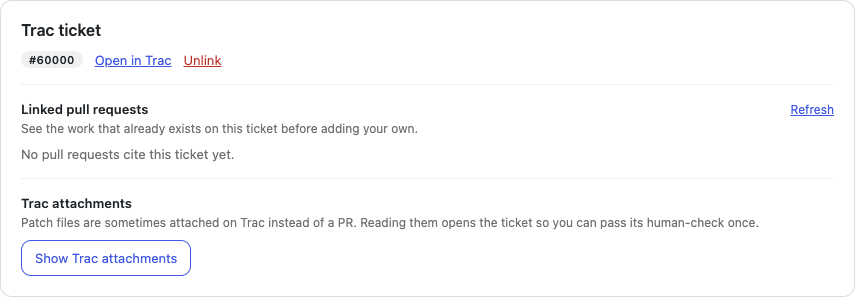
Link a ticket
- Type the ticket number or paste its full URL (for example
62281orhttps://core.trac.wordpress.org/ticket/62281) into the field. - Click Link ticket.
The ticket is stored with the site, so it survives restarts. You can change or remove it at any time.
If you do not have a ticket yet, click Not sure yet? Browse good first bugs on Trac to open Trac's curated ticket lists in your browser.
Open a ticket from your browser
The app answers links of the form wpct://ticket/62281. Opening one brings the app forward with that ticket ready, and asks whether to link it to the site you have open. Nothing happens to your site until you answer: linking parks whatever the site is working on and checks out the ticket's branch, so a link fills the number in and leaves the decision to you.

If you have no site yet, the app says the ticket is waiting and points you at creating one. With several sites, the question is asked for the site you have open; to work the ticket in a different one, choose it in the sidebar first and open the link again.
The scheme is registered the first time you run an installed build, so a link works from anywhere your browser or terminal can open one. Nothing on the web uses it yet: this is the address for anything that wants to hand a ticket to the app, including tools you or your team write.
Linking a ticket gives it its own branch inside the site, so the work you do for it is kept apart from every other ticket on that site. A site can hold as many tickets as you like — see Working on several tickets.
If you have edited anything before linking, the app asks what should happen to those edits rather than deciding for you. The four choices are described under Edits you made before picking a ticket.
Once a ticket is linked, the panel shows its number with these actions:
- Open in Trac — opens the ticket in your browser.
- Read details from Trac — fills in what the ticket actually says, described below. It is only there until the details are loaded; once they are on screen it has nothing left to do and goes.
- Unlink — removes the link and puts the site back on trunk. Nothing on Trac is affected, and nothing you did for the ticket is lost: the work stays attached to the ticket in this site, and the ticket moves to the Your tickets on this site card, ready to continue.
What the ticket says
A ticket number on its own tells you nothing about the ticket. One closed wontfix three years ago reads exactly like one filed last week — and you find out on Trac, after the afternoon is spent.
Click Read details from Trac and the panel fills in the ticket's own facts, under its number:
- Its summary.
- A status pill with the resolution folded in —
closed (wontfix)rather than a bareclosed, because "closed (fixed)" and "closed (wontfix)" are opposite instructions to a contributor. - Its type, its milestone, and how long ago it was opened (the exact date is in the tooltip).
- Its component and keywords, as links. These use Trac's own query URLs, lifted from the page rather than rebuilt, and open in your browser like any other link.
This reads the same embedded Trac window the attachment list uses, so it costs the same single human check — see Trac attachments below. Clearing that check once serves both.
Unsubmitted work
When the linked ticket has changes you have not submitted anywhere, the panel says so — You have 1 unsubmitted change for ticket #29798 — with links to review and submit or discard your changes.
The count is the ticket's whole work, including everything parked when you last switched away from it, and it is measured the same way the patch is — the note and the diff read the same walk of your files.
Linked pull requests
The panel searches GitHub for pull requests on WordPress/wordpress-develop that cite the ticket number, and lists them newest first. Each row shows the PR number (click it to open the PR in your browser), its title, its state, and a date labelled with what it is: last commit when the newest commit's date could be resolved, updated only as a fallback when it could not. Click Refresh to search again.
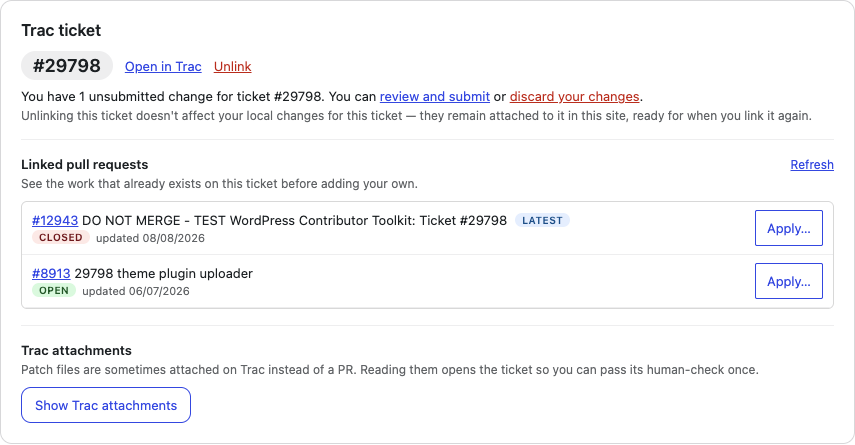
The state is a coloured pill, in GitHub's own three colours: green OPEN, purple MERGED, red CLOSED. Red here is a label and not a warning — a closed pull request is an outcome, not a failure. Merged is rare on wordpress-develop, where a pull request is opened for review and the change usually lands as a commit instead.
Each pull request has a Apply… button, which fetches its commits from the site's origin and shows you a file preview before checking out its own pr/NNNN branch — see Applying patches and PRs.
The search uses GitHub's unauthenticated API, which allows 60 requests per hour from your machine. If the limit is spent or you are offline, the panel says so and falls back to the last list it saw, noting when that was. A pull request that changed state since then keeps its old pill until the next successful lookup.
Trac attachments
On many tickets — good first bugs especially — the existing work is a .diff file attached on Trac rather than a pull request. Click Show Trac attachments to list them.
Trac answers non-browser clients with a proof-of-work interstitial, so the app cannot simply download the list. Instead it opens the ticket in a real browser window, where the check runs — usually automatically within a few seconds, staying hidden. If Trac escalates to an "I am human" checkbox, the window appears so you can click it once. The window then closes on its own; the attachment list is read from the page and shown in the panel.
Each attachment row shows the filename (click it to open the file in your browser), the author, the date, and the size. Rows for patch files have a Apply… button that previews the file and applies it as a removable layer on the current ticket branch.
Two things can go wrong:
- If the human-check does not complete within 90 seconds, the panel says so — try again, and click "I am human" if it appears.
- If you close the Trac window before the list loads, click Show Trac attachments again.
Which patch is newest
When a ticket has both pull requests and attachments, the panel marks the most recent one with a Latest pill, and points out when the latest work is a file attachment rather than a pull request. Testing the newest patch first is usually what a ticket needs.
"Most recent" means the newest commit, not the last time the pull request was touched. GitHub's "updated" timestamp is bumped just as hard by a comment, a label change or a bot sweep as by a push — and an upstream force-push of trunk can restamp thousands of open pull requests inside one window, which is enough to crown a patch whose newest code is eighteen months old over one that still applies.