The Terminal panel
Each site view includes an embedded terminal. It is not a general-purpose shell: it accepts a small, fixed set of commands, all of which run in the site's directory using the Node.js runtime bundled with the app. This is enough to rebuild the site after editing code — the reason the panel exists — without requiring Node or npm on your machine.
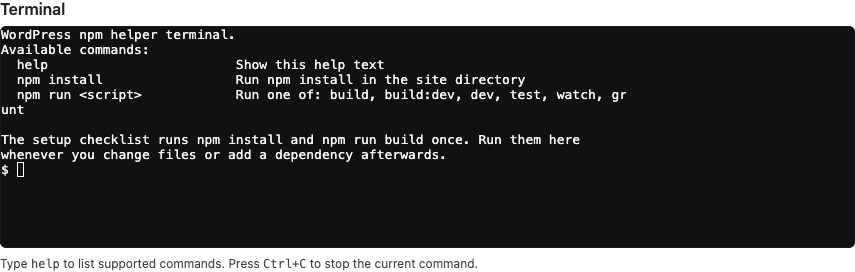
Supported commands
Type help to see the list at any time:
| Command | What it does |
|---|---|
help | Lists the supported commands. |
npm install | Runs npm install in the site directory. npm i and install work too. |
npm run <script> | Runs one of the allowed scripts. On a WordPress Core site: build, build:dev, dev, test, watch, grunt. On a Gutenberg site: build, dev, test:unit, lint, lint:js. |
Any other script name is refused with a message listing the allowed scripts. Gutenberg's bare test is deliberately not on the list: it runs the PHP and end-to-end suites, which need Docker. Only one command runs at a time; if one is already running, the terminal tells you to stop it first.
Press Ctrl+C to stop the running command. The Up and Down arrow keys move through your command history.
When to use it
The setup wizard runs npm install and npm run build once, when the site is created. After that, keeping the built site in sync with your edits is up to you:
- Edited files in
src/? Runnpm run buildso the site picks them up. On a Gutenberg site the hint namespackages/instead. - Added a dependency to
package.json? Runnpm install.
Once the site has been built, these two hints appear directly under the terminal. While the build watch is running, the first is done for you as you save. The command in each hint is a link: clicking it types the command into the terminal for you, ready to run — it does not execute it. While a command is running the hints stop being links and show as plain text, so there is nothing to click until it finishes.
Do not run npm run watch
It looks like the way to rebuild continuously, and it is a trap. wordpress-develop's Gruntfile renames the real watch task to _watch and leaves a watch wrapper that runs a full production build first — tens of minutes with nothing to show for it, and 30+ on a Windows VM.
You do not need it anyway: starting the dev server already starts the real watcher for you, as grunt -- _watch.
On a Gutenberg site the watcher is npm run dev, which has no such trap; it builds everything once (about twenty seconds) and then recompiles what you save.