Working on a GitHub issue
Gutenberg sites
This is the Gutenberg counterpart of Working on a Trac ticket. A Gutenberg site's work item is an issue on WordPress/gutenberg, and the GitHub issue card is where a Core site has its Trac ticket card. When the work is done, Open a pull request sends it to WordPress/gutenberg from the same screen a Core site uses.
Every Gutenberg change starts on a GitHub issue. The GitHub issue card links your site to the one you are working on, and then lists the pull requests that already fix it, so you can try them before adding your own.
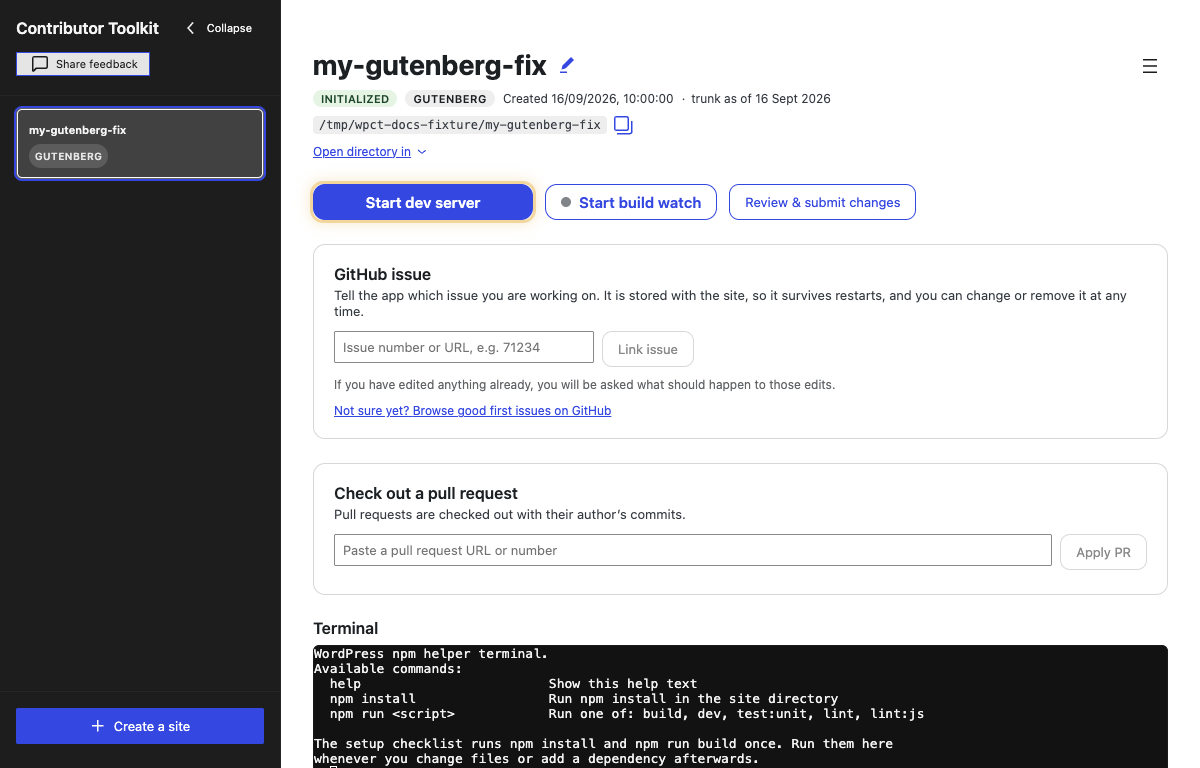
Link an issue
- Type the issue number or paste its URL (for example
71234orhttps://github.com/WordPress/gutenberg/issues/71234) into the field. A comment anchor or a query on the pasted URL is fine. - Click Link issue.
The issue is stored with the site, so it survives restarts. You can change or remove it at any time.
Two things are refused by name rather than linked: a pull request URL, because the obvious mistake is pasting the pull request instead of the issue it fixes, and an issue from another repository, because a site cannot cite a number from a project it is not a checkout of.
If you do not have an issue yet, click Not sure yet? Browse good first issues on GitHub to open the Good First Issue list in your browser.
Linking an issue gives it its own branch inside the site, named issue/71234, so the work you do for it is kept apart from every other issue on that site. Everything in Working on several tickets applies, with issue for ticket: switching, parking, the Your issues on this site card, the update to the current trunk, and the four choices for edits made before linking.
Once an issue is linked, the card shows its number with these actions:
- Open on GitHub opens the issue in your browser.
- Unlink removes the link and puts the site back on trunk. Nothing on GitHub is affected, and nothing you did for the issue is lost: the work stays attached to the issue in this site, and the issue moves to the Your issues on this site card, ready to continue.
There is no Read details action here: an issue's title, labels and state are one click away on GitHub, and the app has no human-check to pass on the way.
Linked pull requests
The card searches GitHub for pull requests on WordPress/gutenberg that are for this issue, the way GitHub itself links the two: a closing keyword in front of the number or the issue's URL in the pull request's description (Fixes #71234, Closes WordPress/gutenberg#71234, Resolves https://github.com/WordPress/gutenberg/issues/71234). A number or a URL mentioned in passing does not count, on GitHub or here. The list is the same one the issue page shows under linked pull requests.
Each row shows the pull request number (click it to open it in your browser), its title, its state and a date labelled with what it is, exactly as on a Core site; see Linked pull requests for the pills, the Latest mark and the rate limit. Merged is common here, unlike on wordpress-develop: a Gutenberg pull request lands by being merged.
Each pull request has an Apply… button, which fetches its commits and checks out its own pr/NNNN branch after a file preview; see Applying patches and PRs. Any other pull request on WordPress/gutenberg can be pasted by URL or number into the Check out a pull request card.
What a Gutenberg site does not have
- Trac attachments and Attach to Trac: GitHub issues carry no patch files. Work arrives as pull requests, which the list above shows.
- The
.diff/.patchpicker: same reason. A patch you save from a Gutenberg site is repo-relative (packages/…,lib/…) and applies to any Gutenberg checkout withgit apply.
Open an issue from your browser
The wpct://ticket/N link is for Trac tickets and is turned away on a Gutenberg site. A wpct://issue/N link comes in a later version.