Submitting your changes
When your change works and you want to contribute it, open the Review & submit changes screen. It shows your work as a patch and, next to it, the places that patch can go.
Your changes
The left side of the screen is the diff, titled Your changes. This is exactly what will be submitted, so read it before choosing a destination.

What it contains is the work on the ticket or issue you are on, and only that: everything its branch has gained since it was created, including whatever was parked the last time you switched away from it. Another work item's changes are never in it, and neither is a change that arrived from a trunk update. On a site with no work item linked, it is simply everything the checkout has that its copy of trunk does not.
If a pull request is checked out, this screen can save an unattributed backup but cannot send the combined work. Use Revert this PR first. Edits you made while trying the PR stay on its local branch; finishing the test prevents the PR author's commits from being submitted as yours.
Two buttons sit above the diff:
- Save — saves the diff as a patch file wherever you choose.
- Copy — copies the whole diff to the clipboard.
If there are no changes to send, the screen says so. If the checkout is old, a warning suggests updating to the latest trunk first so the change is reviewed against current code — see Staying up to date with trunk.
Discarding it all
Next to the heading is Discard all changes. It asks first — Discard all local changes? This cannot be undone — and then throws away exactly what the diff above it shows, which on a linked ticket or issue means the whole of that work: your uncommitted edits and anything parked in a commit the last time you switched away from it.
The work item itself survives. Its branch stays, the link stays, and you carry on working on it from a clean base. Throwing that work away along with its branch is a different gesture — Delete this ticket's work or Delete this issue's work, on the work-items card. See Deleting a work item's changes.
The button is unavailable while an install, a build or a trunk update is running, or while the dev server is up, since all of them are holding the files it would rewind.
What a patch can and cannot carry
The patch carries files you added, files you edited, and files you deleted. A deletion is written the way git apply and patch expect one, so a reviewer applying your patch really does lose the file.
Some things a text diff cannot represent. Images and other binary files are one, and so is a file the app could not read. Those are not dropped in silence: they are named in # comment lines above the diff, for example
# 1 file is not in this patch — a text diff cannot carry binary content:
#   src/wp-includes/images/example.png
Tools that apply patches skip those lines, so the patch still applies; the point of them is that you know what to attach or mention by hand. If a binary file is the only thing you changed, there is no diff to attach and the screen offers no destination.
The one gap left: adding or deleting an empty file is still not represented in the patch.
Where your changes go
The right side lists the destinations available for this project. The pull request is the one the app sends for you; the other destinations save a file for you to send. Each card states what it costs to use and what happens afterwards, so you can choose with the trade-offs in front of you.
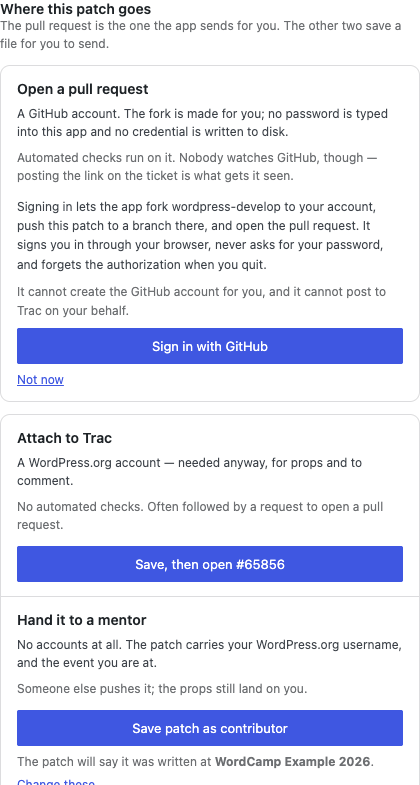
- Open a pull request — needs a GitHub account. The app forks the site's repository (
wordpress-developorgutenberg) to your account, pushes your change to a branch, and opens the pull request. Automated checks run on it. Opening a pull request - Attach to Trac — Core sites only. It needs a WordPress.org account, which you need anyway for props and to comment. The app saves the patch file and opens the ticket's attach page; you upload it yourself. No automated checks run. Attaching a patch to Trac
- Hand it to a mentor — needs no accounts at all. The app saves a patch file carrying your WordPress.org username and the event you are at; someone else pushes it, and the props still land on you. Handing a patch to a mentor
A Gutenberg site has no Attach to Trac card. Its issue and review both live on GitHub, so its two destinations are Open a pull request and Hand it to a mentor.
Your WordPress.org username and event
The mentor destination asks for your WordPress.org username and, optionally, the event you are contributing from (for example a WordCamp contributor day). Both are asked once and remembered for every site — they are facts about you, not about one checkout.
The username and event are embedded in the patch file itself, as comment lines at the top, along with the linked work item, the trunk revision the patch is based on, and the date. A filename survives until someone renames the download; the header survives with the file. This is what lets a mentor upload your patch with your name on the work.
The event is shown on every save — The patch will say it was written at … — so a remembered event from last year cannot keep stamping patches unnoticed. Click Change these to update either value, or clear them.