Managing sites
Everything about a site's identity and lifecycle lives in its header: the name, a few status badges, the path, and the More menu (☰) at the top right.
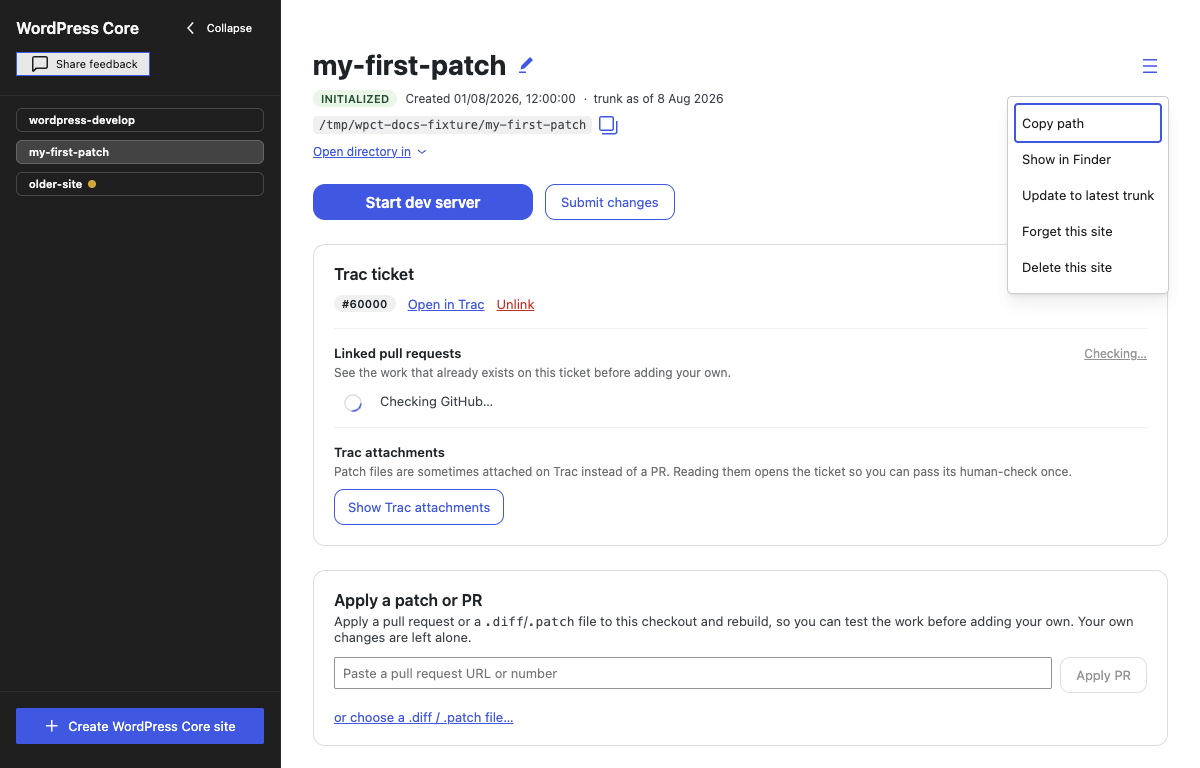
The site header
- Rename — click the pencil icon next to the site title to give the site a different display name. This changes the label in the app only; the directory on disk keeps its name.
- Status badge — INITIALIZED once the repository is cloned; UNINITIALIZED before that.
- Created date — when the site was created.
- Trunk age — how old the site's snapshot of trunk is. When the snapshot gets stale, an amber dot appears next to the label; hover it to see the age in days. See Staying up to date with trunk.
- Path — the site's directory, with a copy button next to it. The Open directory in menu underneath opens it in your file manager or an editor; see Editors.
The More menu
The ☰ menu at the top right of the site view contains:
- Copy path — puts the site's directory path on the clipboard.
- Show in Finder (macOS) / Show in Explorer (Windows) — reveals the directory in your file manager.
- Update to latest trunk — fetches the latest trunk of the site's repository and rebuilds. Also reachable from the staleness notice; on an already-fresh site it just prints "Already up to date." See Staying up to date with trunk.
- Delete this site — removes the site from the list and deletes its directory from disk. This cannot be undone. The app will only ever delete a directory it has on record as a site — never an arbitrary path. It takes every ticket's or issue's work in the site with it; to throw away one work item and keep the rest, use its Delete this … work action instead — see Deleting a work item's changes.
Delete asks for confirmation first.
Updating with uncommitted changes
If you start Update to latest trunk while the site has edits loose in the working tree, the app does not silently throw them away. A dialog titled Update to latest trunk? lists every changed file and offers two choices:
- Save them as a patch first (as a local file) — writes a
.diffto your machine, then updates. Nothing is sent anywhere. - Discard them — your changes are lost; this cannot be undone.
Confirm with Save patch & update or Discard & update, or Cancel to keep everything as it is. If you meant to keep the changes as a contribution instead, see Submitting your changes.
Work that is already parked on a ticket or issue branch is never what this dialog is offering to discard — the update carries it across untouched. See Updating while you are on a work item.
Sites created by an earlier version
A site created before the app shipped its own Git shows a red banner at the top of its card: "This site was created by an earlier version of the app." The app now clones sites with the Git it bundles, and the shallow clones the old engine made cannot be written safely by it, so linking tickets, applying patches, discarding changes and updating trunk are refused on that site. Reading still works: the ticket panel and the patch export show what is there. The way out is the banner's Create site button: export your work as a patch, create a new site, apply the patch there, then delete the old site from its More menu.
The export covers the ticket that is currently linked. Work parked on another ticket's branch in that site cannot be reached without switching to it, and switching is one of the refused actions, so it stays in the old site's repository. A Git client can still read it there (git log ticket/<number>) if you need it back.