Running the site
Once the setup wizard is complete, the site view shows a Start dev server button. This starts a local WordPress that runs your site's code, so you can see your changes running: for a WordPress Core site, the WordPress built into its build/ directory; for a Gutenberg site, a stock WordPress with your checkout as its Gutenberg plugin.
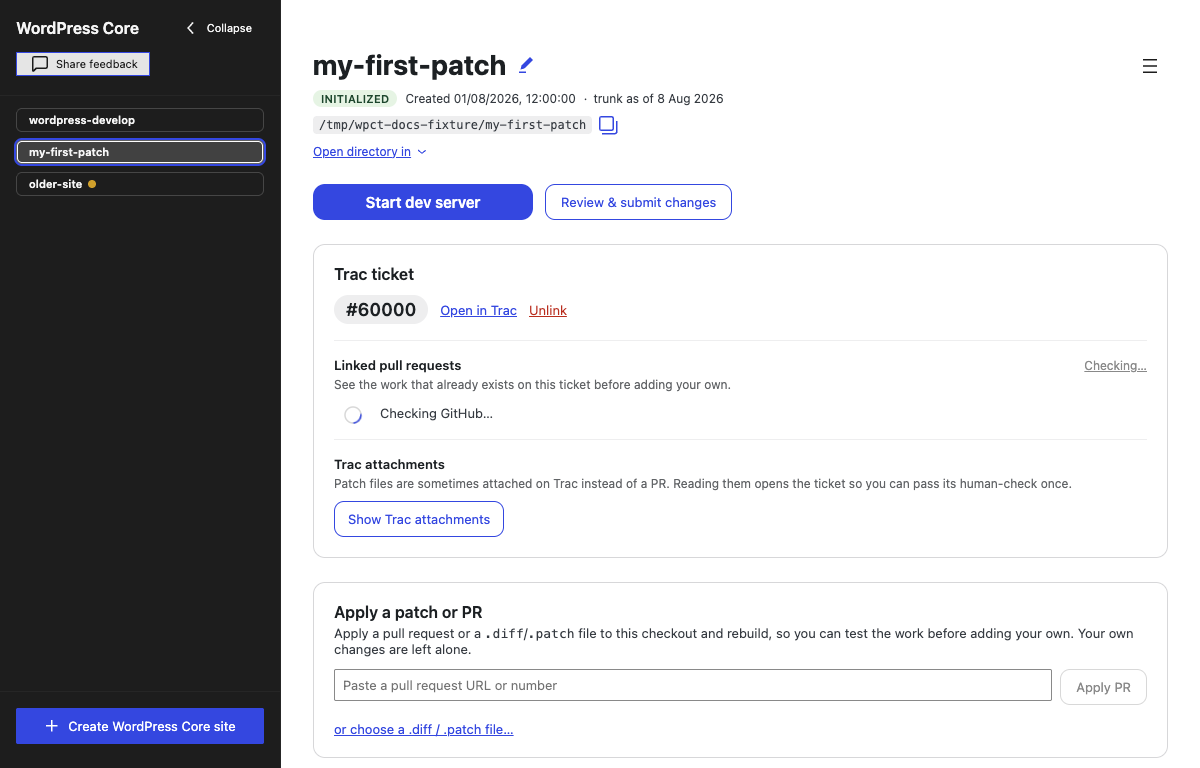
Start and stop
Click Start dev server. The button cycles through three states:
- Start dev server — nothing is running.
- Starting dev server... — the server is booting. A "Dev server is starting…" line below the button shows the elapsed time.
- Stop dev server — the server is up. The button shows a red dot; clicking it stops the server.
When the server is ready, its URL appears below the button, for example http://127.0.0.1:<port>/, with a wp-admin link beside it. Click either to open the site in your default browser.

The button is disabled while a trunk update is running. The reverse is no longer true: an update can run with the server up, because it pauses the build watch for the rebuild and leaves the server serving — see Applying patches and PRs and Staying up to date with trunk.
Logging in
Every site uses the same credentials, shown next to the URL:
- Username:
admin - Password:
password
The wp-admin link next to the site URL opens the dashboard directly. It appears in both places the URL does: the setup checklist step and the site page.
What the dev server actually runs
The dev server is not a stub — it is WordPress Playground running your checkout:
- The app runs the Playground CLI (
@wp-playground/cli). For a WordPress Core site, yourbuild/directory is mounted as the WordPress root. For a Gutenberg site, Playground installs WordPress on the first start, keeps that installation for the checkout, and mounts your checkout atwp-content/plugins/gutenberg, activated. Posts, settings and uploaded files survive Stop dev server, starting it again, and restarting the app. PHP runs as WebAssembly inside the bundled Node.js runtime, so no PHP install is needed. - On a Gutenberg site the served WordPress cannot install, update or delete plugins and themes, and has no file editor. The mounted plugin is your working tree, uncommitted work and
.gitincluded, and Plugins → Delete would remove it; the app tells WordPress not to modify files instead. To try another plugin alongside Gutenberg, use a WordPress Core site. - The database is SQLite, stored inside the Playground instance. This covers most core contribution work; if a ticket specifically needs MySQL behaviour, this environment cannot reproduce it.
- The server binds to the loopback interface only. It is reachable from your machine, not from the rest of your network.
- Outgoing mail is captured locally instead of being sent — see Mail.
The build watch
The build watcher compiles what you edit into what the server actually serves: src/ into build/ on a WordPress Core site, the packages into their build/ directories on a Gutenberg site, where the watcher is Gutenberg's own npm run dev and rebuilds everything once before it starts watching. It has its own Start build watch button next to the dev-server button, and its own status dot:
| Dot | State |
|---|---|
| Green | Watching. It stays green while it recompiles a save — that is its normal working state. |
| Amber | Either the one-off full build that runs before the watch can start on a site that has never been built, or the watch paused while another action owns the build directory. |
| Red | It exited on its own. Read the Build watcher log tab to find out why. |
| Grey | Stopped. |
The watch and the server are independent in both directions:
- On a WordPress Core site, starting the dev server starts the watch first (building once if the site has no
build/yet), then serves. Its watch touches nothing on start, so the URL appears at once. - On a Gutenberg site that is already built, starting the dev server does not start the watch: the server serves the
build/the site has, and the URL appears in seconds. The watch is Gutenberg'snpm run dev, which removesbuild/and rebuilds it (about twenty seconds on macOS, several minutes on Windows) before it watches, and on a built site that rebuild produces what was already there. Start it with Start build watch when you want edits underpackages/compiled on save; applying a pull request or a patch, and updating trunk, rebuild on their own when no watch is running. On a Gutenberg site that has never been built, the watch still runs first, and the server waits for the Build watcher tab to print Watching for changes before the URL appears; a page opened before that would find the plugin unbuilt. The same happens after a rebuild that was cut short, a watch stopped or exited while its tab read (building):build/may be incomplete, so the next server start sends the watch first and waits for it. Starting the watch by hand while a server is already up reopens that window: the site answers with Gutenberg's requires files to be built notice, or a PHP fatal, until the rebuild finishes. - Stopping the dev server leaves the watch running, so you can keep compile-on-save going without a server.
- The watch exiting never touches the server.
- You can start and stop the watch on its own, at any time, whether or not a server is up.
While the watch is running, applying a patch, switching work items or updating trunk uses it rather than fighting it. A patch that does not move package-lock.json is applied and left for the watch to recompile — the checklist shows the build step skipped and names the watch as doing it. One that does move the lockfile has to install, so it pauses the watch for the duration and resumes it after, with the PHP server up throughout. On Core the install is followed by a build; on Gutenberg a patch's resumed watch rebuilds from scratch on its own, so the patch runs no separate build and the checklist says the resumed watch is doing it. A trunk update follows the same rule: on Core it builds itself before the watch resumes, on Gutenberg it resumes the watch and lets that rebuild be the one build, and the update completes on the watch's ready line. Linking, unlinking or switching a work item only moves the checkout, so the watch is left running and recompiles the files that changed; restoring a pull request you had parked on a work item is the one switch that pauses it, because it installs and builds afterwards, as does any switch made before the watch has finished starting.
Its output goes to its own Build watcher log tab, not to the terminal, and it no longer holds the terminal's "running" lock — so the terminal and one-shot actions stay available while it runs.
DB inspect (Adminer)
While the server is running, a DB inspect (Adminer) link joins the site URL and wp-admin on the same row. It opens Adminer, a database browser, against the site's SQLite database — useful for inspecting what a code change wrote. See Database for details.
The link disappears when the server stops, because there is no database to connect to.
Where the output goes
The server's output goes to the Server tab of the Logs section, and the watcher's to its own Build watcher tab; startup errors land there too. The terminal panel is for the commands you type. See Logs and debugging and Terminal.