Keeping a site up to date with trunk
A site is a clone of its project's repository frozen at the moment it was created, so it starts drifting behind trunk immediately. You never have to create a new site to get newer code.
The header of each site shows which snapshot it currently holds — for example trunk as of 5 Aug 2026.
Update to latest trunk
Update to latest trunk lives in the ☰ More menu at the top right of any site. It brings an existing site up to the current trunk: it fetches the newest commits, reinstalls dependencies if package-lock.json moved, and rebuilds.
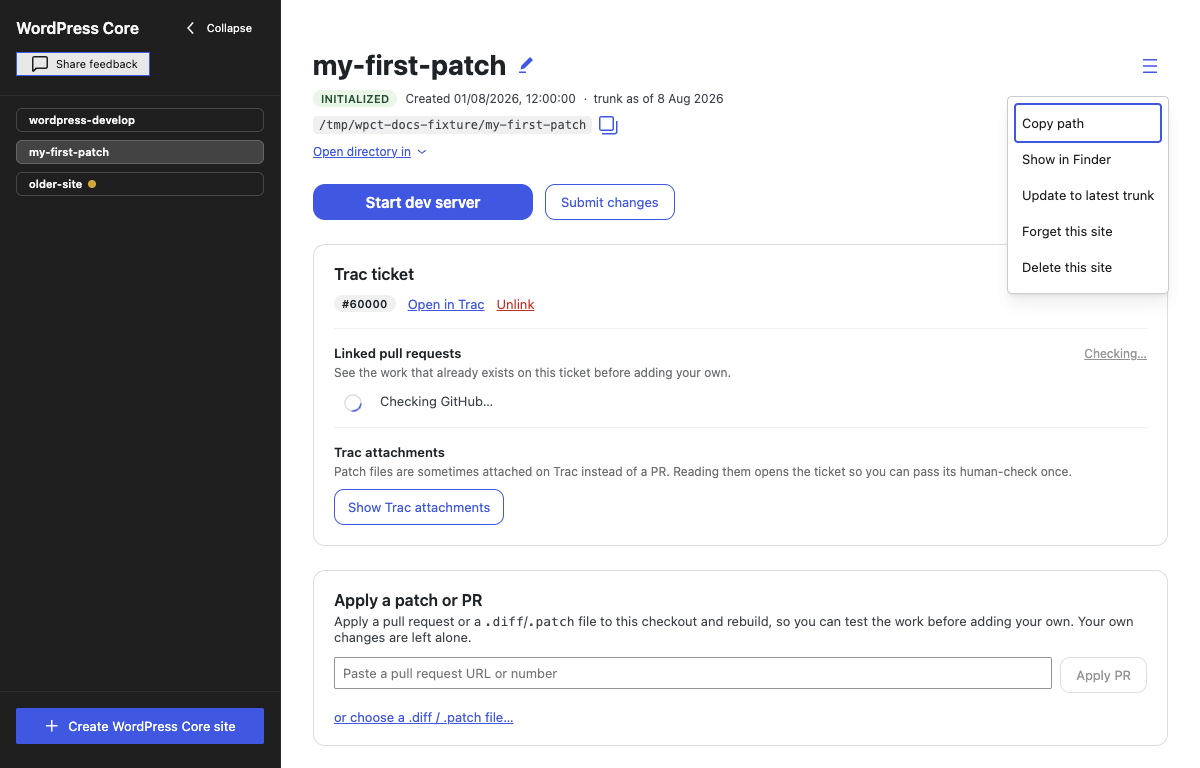
This option is always there — on every site, at any time, no matter how old or new the snapshot is and whether or not the app has flagged it as stale. If nothing has moved, you simply get "Already up to date." in the terminal.
The update fetches from the site's own origin remote. A site the app created points at WordPress/wordpress-develop or WordPress/gutenberg; a site you added from an existing checkout of a fork keeps fetching from that fork. A checkout with no origin remote cannot be updated; the terminal says so and how to add one.
You no longer have to stop the dev server first. The update pauses the build watch for the reset and resumes it afterwards, and the PHP server keeps serving throughout.
What it will not run alongside is another update, install or build. While one is running, the ☰ menu entry is greyed out and says which under its name ("Wait for the build to finish."), and it comes back as soon as that ends. The Update to latest trunk button in the staleness notice is held the same way during an install or a build, with the same sentence as its tooltip; during an update the notice gives way to the progress card.
What an update runs
The update always shows the same three steps in a progress card, with a "step N of 3" counter:
- Fetch and reset to trunk — pull the newest commits and reset the checkout to them. If you have uncommitted changes the app stops and asks first, offering Save them as a patch first (as a local file) or Discard them — the second loses the work and cannot be undone. When you choose to save, the summary afterwards tells you where the patch went. If a merge started outside the app is waiting in the checkout, the update is refused before anything moves, because the reset would erase it; finish or abandon that merge from a terminal first, as described in If a merge is in progress.
- Install dependencies — runs only if
package-lock.jsonchanged between the old and new trunk; otherwise the step is shown as "Dependencies unchanged — skipping npm install". When it does run, most packages are already cached, so it downloads the difference, not the whole tree. - Rebuild — rebuild the
build/directory so it matches the new source. On WordPress Core the update runs this build itself before the watch resumes. On a Gutenberg site with the watch running, the resumed watch rebuildsbuild/from scratch anyway, so the update leaves the one build to it: the step reads The build watch is rebuilding, its output goes to the Build watcher tab rather than the terminal, and the update completes when the tab reads (watching) again. The site answers with Gutenberg's requires files to be built notice until then. If you stop the watch before it finishes, the update stays incomplete and the red notice below offers the retry.

When the chain finishes, a green summary reads Up to date with trunk as of today., along with whether dependencies changed, how long the rebuild took, and the path of any saved patch. Updating typically takes a few minutes.
Updating while you are on a work item
An update moves trunk, and your linked work is not on trunk — so the app steps around it. On a Core site the terminal says Parking your work on ticket/59234 before updating…; on Gutenberg the branch is issue/59234. The three steps run against trunk, then the app returns to the same branch with its ticket or issue still linked and its changes still in the tree.
The dialog in step 1 only ever concerns edits that are loose in the working tree. Work already parked on a ticket or issue branch is never what it is offering to save or discard.
What an update does not move is the snapshot your work-item branch was created on. That is deliberate — it is what keeps your patch free of the upstream changes the update just brought in — but it means an old branch does not get any newer by updating the site. The same is true for every other ticket or issue stored on the site: updating trunk does not rebase any of them.
After the update, the work-item card may say Trunk has moved since this ticket started or …since this issue started. That is not an incomplete update: trunk is current and the linked branch is still safely on its original base. To move the work forward, use the update action in that notice, or save a patch, unlink the item, delete its branch, link it again and apply the saved patch. The app never changes a work item's base without one of those explicit actions. See When trunk has moved since the work item started.
Staleness dots and notices
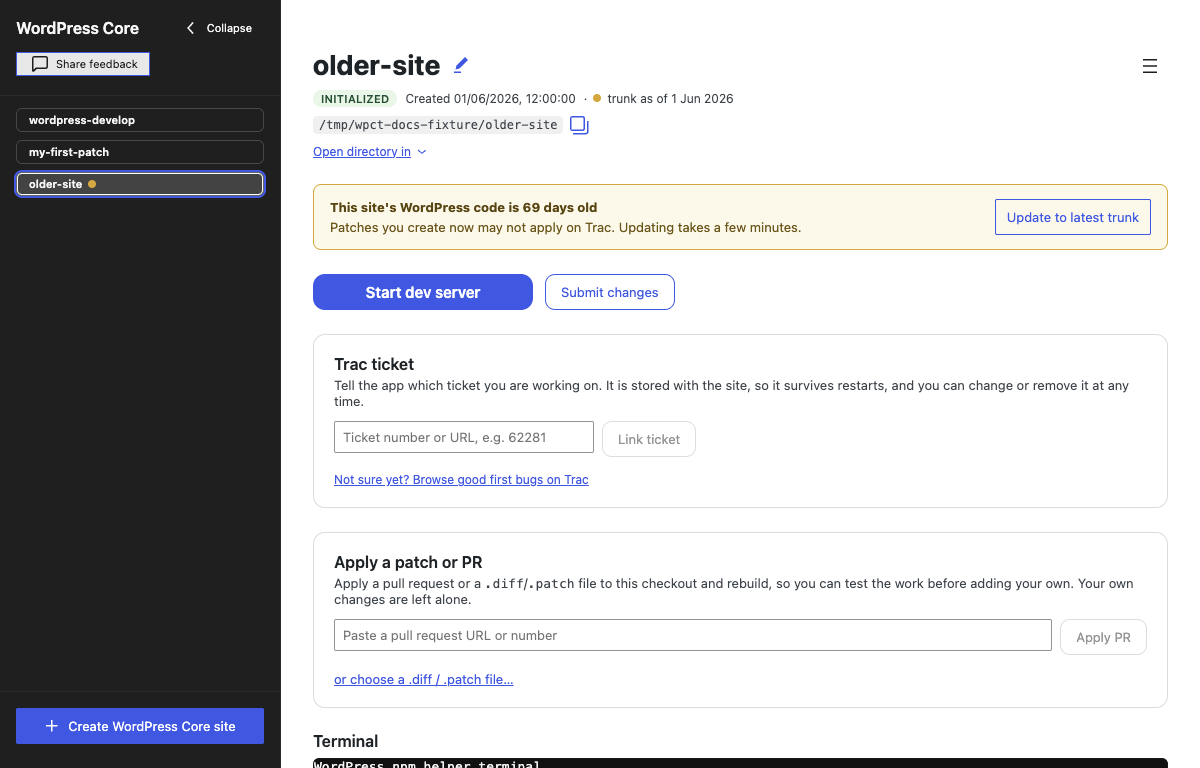
The app flags sites that have fallen behind with a coloured dot next to the site name in the sidebar, after the grey or green dot that shows the site's development server:
- Amber — the snapshot is more than 14 days old. The site view also shows a notice recommending an update before you prepare changes against old code, with an Update to latest trunk button.
- Red — a previous update moved the code but never finished installing or rebuilding, so the built assets no longer match the source. Run the update again.
When an update does not finish
If the fetch succeeds but install or build fails, the site view shows a red banner: Update incomplete — the code is new but the built assets are old, and the site may not run correctly until install and build succeed. Click Retry install & build to run only the missing steps; the fetch is not repeated. The sidebar dot stays red until this succeeds.

Staleness is judged locally
Staleness is judged locally, from the date of the commit your site is sitting on, and never by asking GitHub what the tip of trunk is. That keeps the app working offline and stops it from making a network request every time it launches. Two consequences worth knowing:
- A site created today is never marked out of date, even though trunk gets commits several times a day and yours is already behind by a few. Flagging that would mark every site stale within hours of creation, which makes the warning worthless.
- The only way to find out exactly how far behind you are is to run the update.